
How Slack Sender Works
Set up Slack delivery in a few simple steps.
Configure a Slack provider, connect your channel, verify the setup, and start sending messages manually or automatically through Namirasoft Notification Sender.
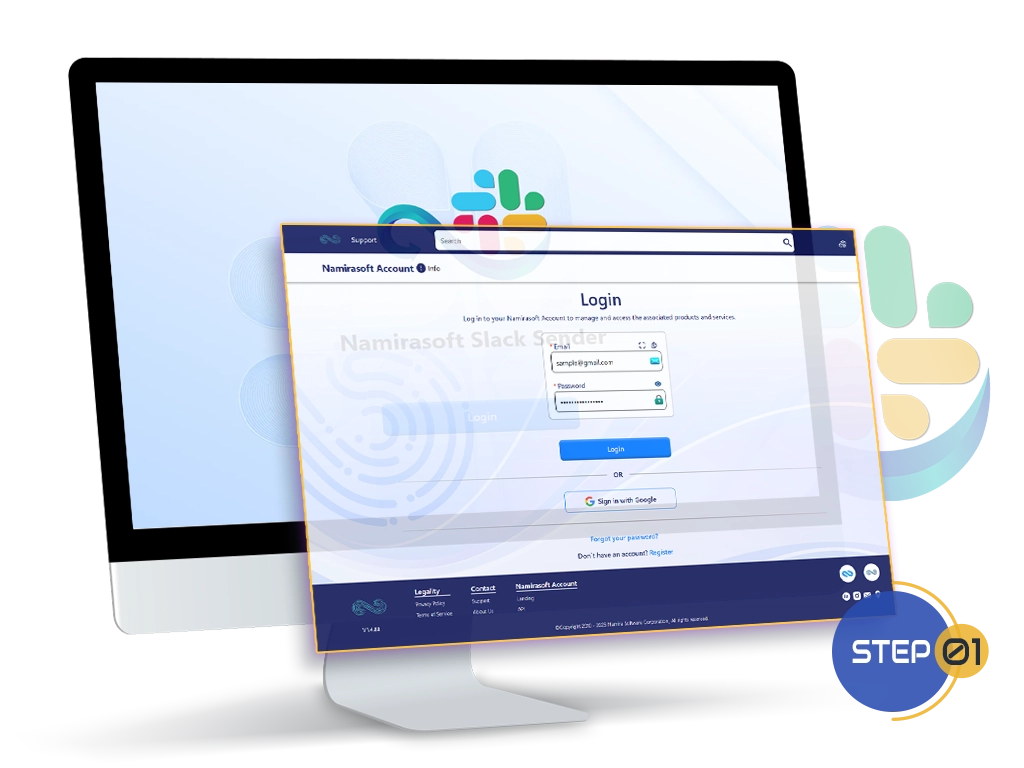
Step 1: Create a Namirasoft Account
Sign up for a Namirasoft Account to access the Slack Sender console and all Namirasoft products.
- Go to Namirasoft Account
- Create your account and sign in
Create a Namirasoft Account
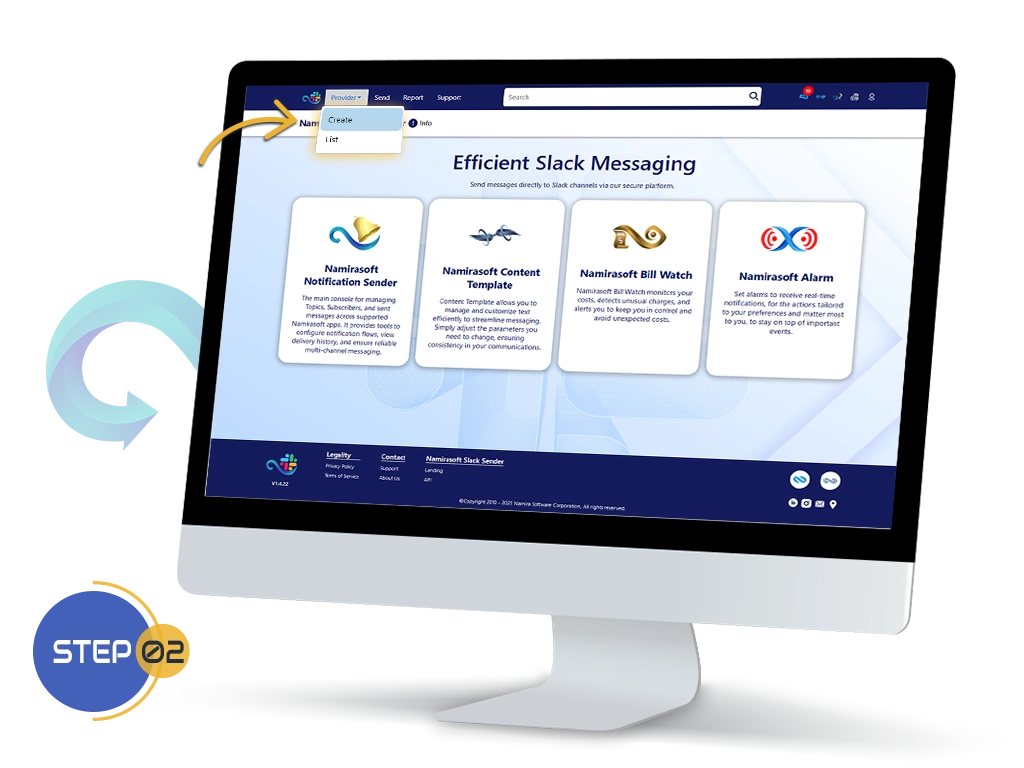
Step 2: Create a Provider
Open the Namirasoft Slack Sender console and start creating a provider.
- Go to the Namirasoft Slack Sender console
- Click Create under the Provider menu
- Enter a Name and optional Description
- Select the Type (currently ChannelBot)
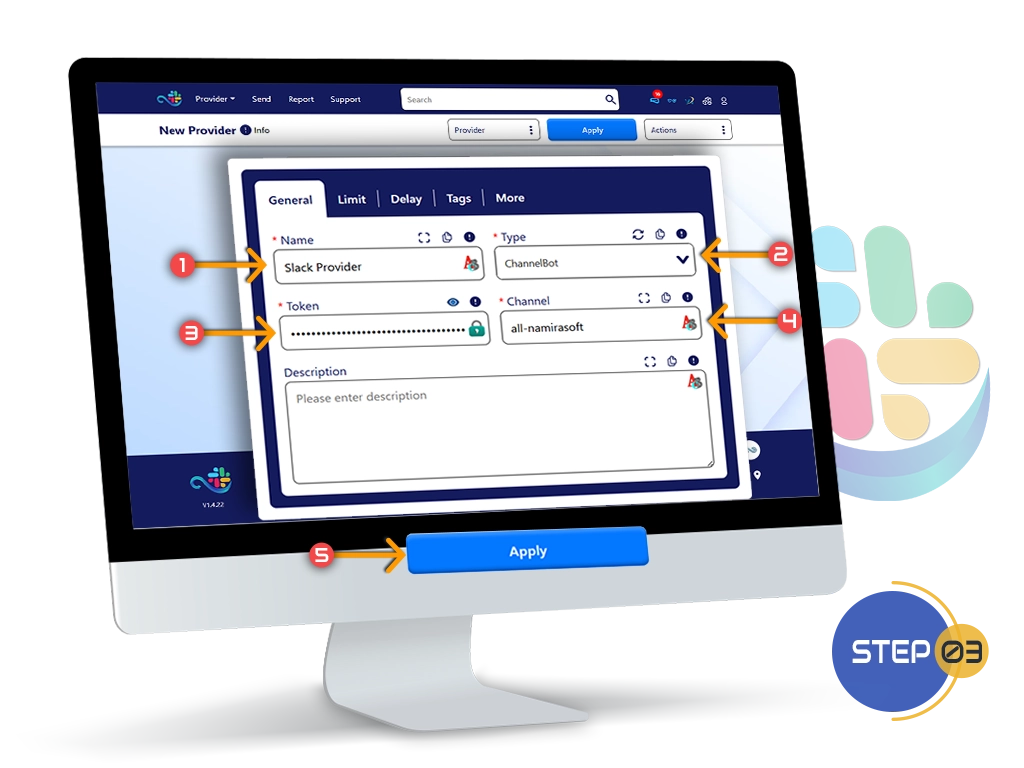
Step 3: Add Your Bot Token and Channel
Add the credentials that connect your provider to Slack, then apply.
- Paste your Bot Token (Learn how to create and get a Slack bot token)
- Enter your Channel ID (Learn how to find a Slack channel ID)
- Click Apply to create your provider
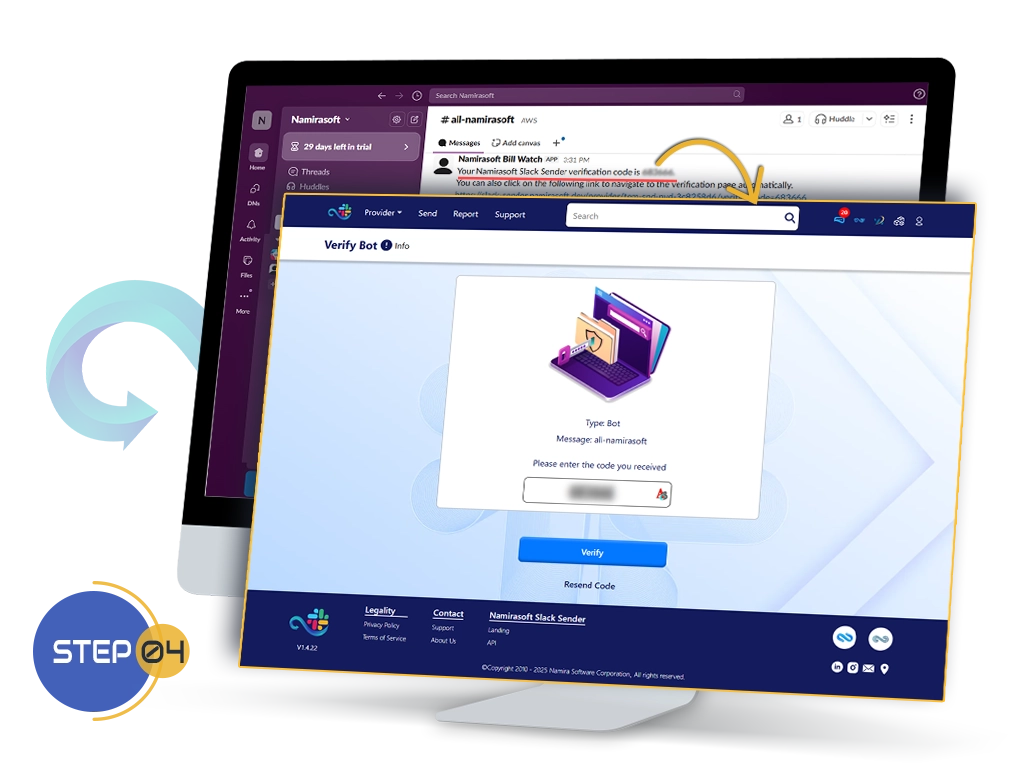
Step 4: Verify Your Provider
Verify your provider to confirm everything is set up correctly.
- Namirasoft Slack Sender sends a verification code to your chosen Slack channel
- Find the code in that channel
- Enter the code in the console to confirm the provider
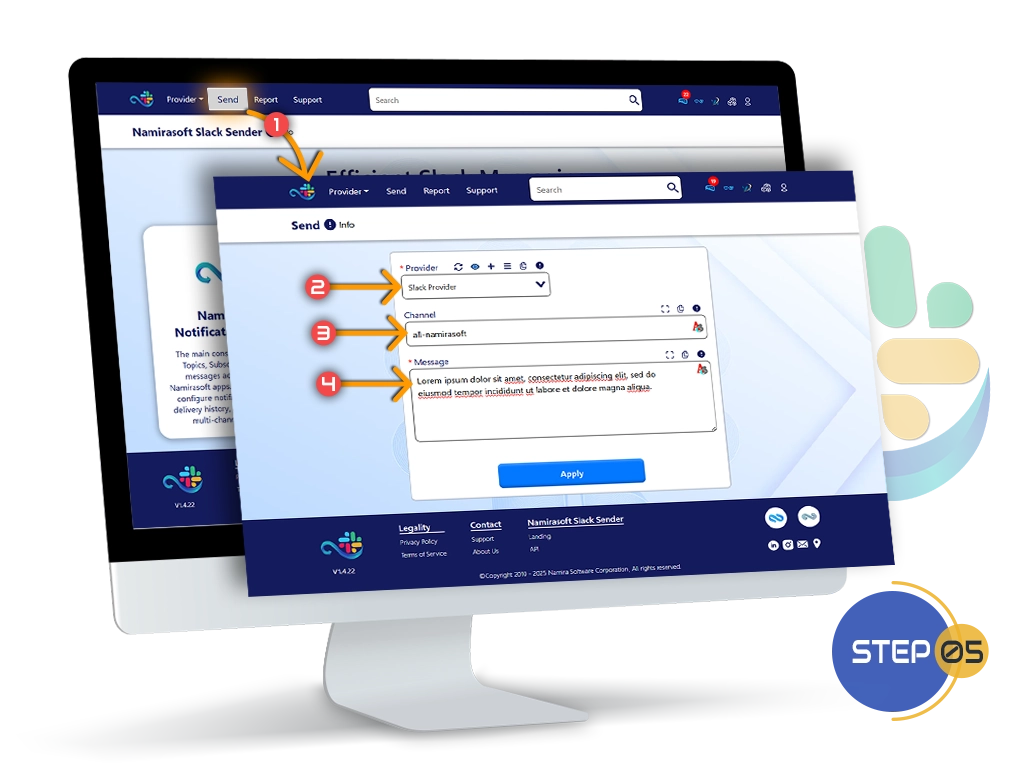
Step 5: Send a Message Manually
Send a message to your Slack channel directly from the console.
- Go to the Send section in the console
- Enter your message and select a provider
- Click Apply to deliver it to your Slack channel
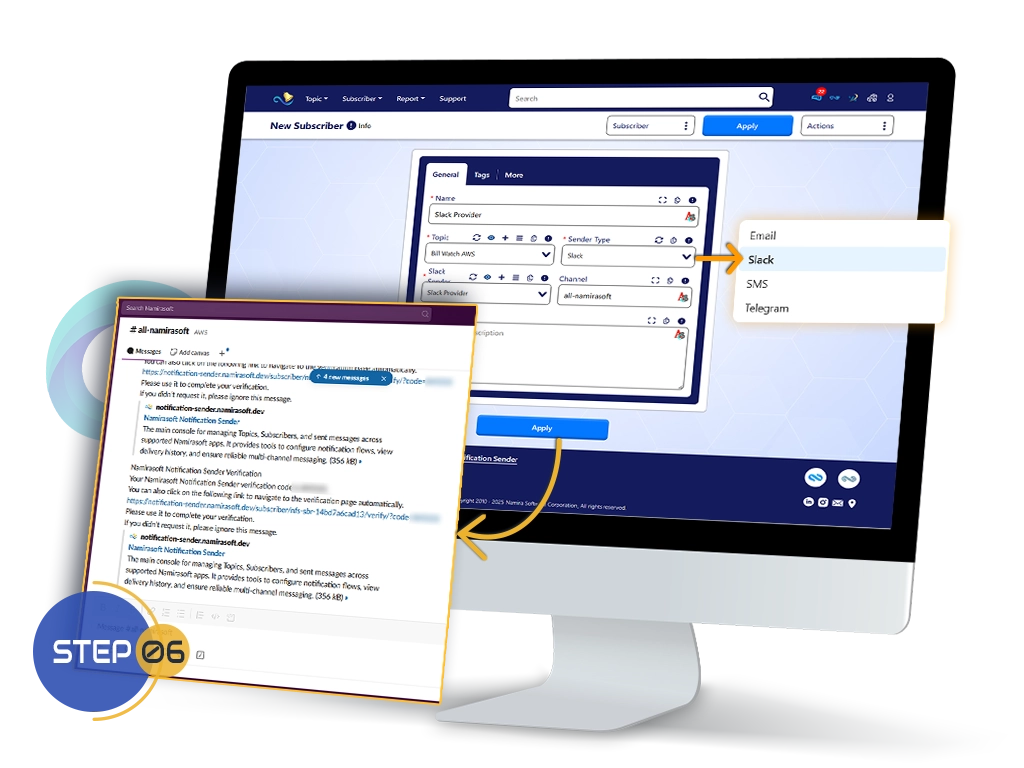
Step 6: Connect with Namirasoft Notification Sender
Automate delivery by connecting Namirasoft Slack Sender with Namirasoft Notification Sender.
- Set up a Subscriber in Namirasoft Notification Sender
- Choose Slack as the Sender Type
- For more details, follow the steps on the Namirasoft Notification Sender How It Works page
Ready to Deliver Messages Through Namirasoft Slack Sender?
How it Works FAQs
Answers to common questions about how to get started and use Namirasoft Slack Sender
1. How do I get started with Namirasoft Slack Sender?
To get started, first create a Namirasoft Account. Then, log into the Namirasoft Slack Sender Console to begin setting up your provider and connecting it with your Slack workspace.

2. What is a provider, and how do I create one?
A provider is the link between your system or app and Slack Sender. To create a provider, go to the Namirasoft Slack Sender Console, click on "Create" under the Provider menu, and fill in the necessary details: provider name, bot token, and channel ID.
3. How do I verify my provider?
Once your provider is created, Namirasoft Slack Sender will send a verification code to your selected Slack channel. To verify, enter this code, and your provider will be ready for use.
4. Can I send messages manually using Namirasoft Slack Sender?
Yes, you can manually send messages to your Slack channels. Simply open the Namirasoft Slack Sender Console, enter the message, and click Apply to deliver it to your selected channel.
5. How can I automate message delivery?
To automate message delivery, connect Namirasoft Slack Sender with Namirasoft Notification Sender. Follow the instruction on the How It Works page to start receiving alerts automatically in your Slack channels.
6. What’s the difference between manual message sending and automation?
With manual message sending, you type and send messages on-demand. For automation, Namirasoft Slack Sender will forward messages, alerts, and notifications to your Slack channels automatically based on triggers in your workflow.