
Connect Your Linux Server
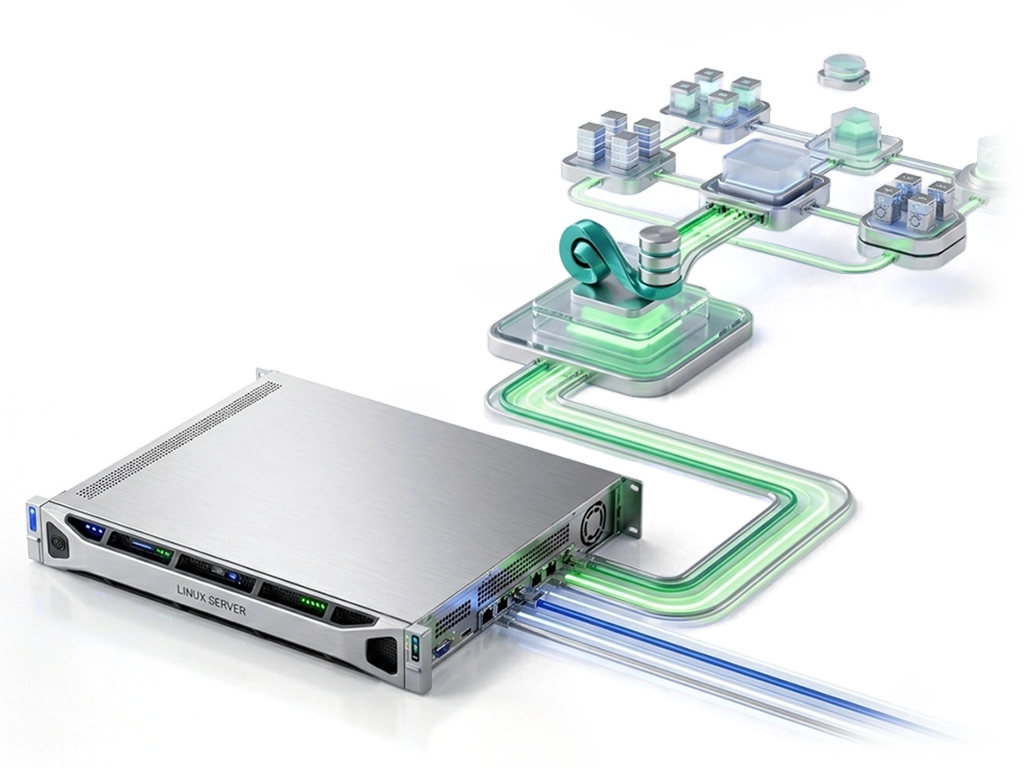
This guide walks you through creating a server, installing the Namirasoft Infra Agent, and configuring the connection to Namirasoft Infra. Once connected, the server is ready for use by Namirasoft Expert.
Before connecting a server, make sure:
- ✓ You have already created a Project and an Environment in Namirasoft Infra.
- ✓ You have access to a Linux server with sufficient privileges to run commands on it.
- ✓ The server has internet access and can reach Namirasoft services.
Note: If you plan to collect logs from this server, make sure you have a Log Group available.
Not set up yet? Visit How It Works →
Step 1: Define a New Server
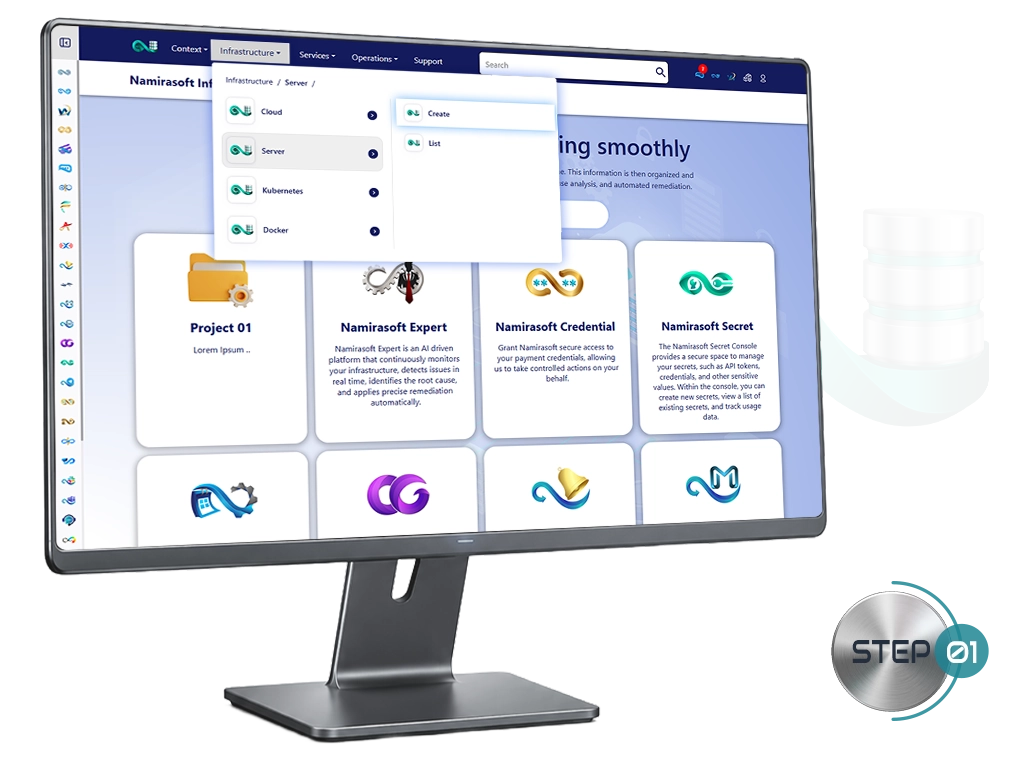
To define a new server, follow the steps below:
- Go to the Namirasoft Infra console.
- In the menu, click Infrastructure.
- Navigate to Server.
- Click Create.
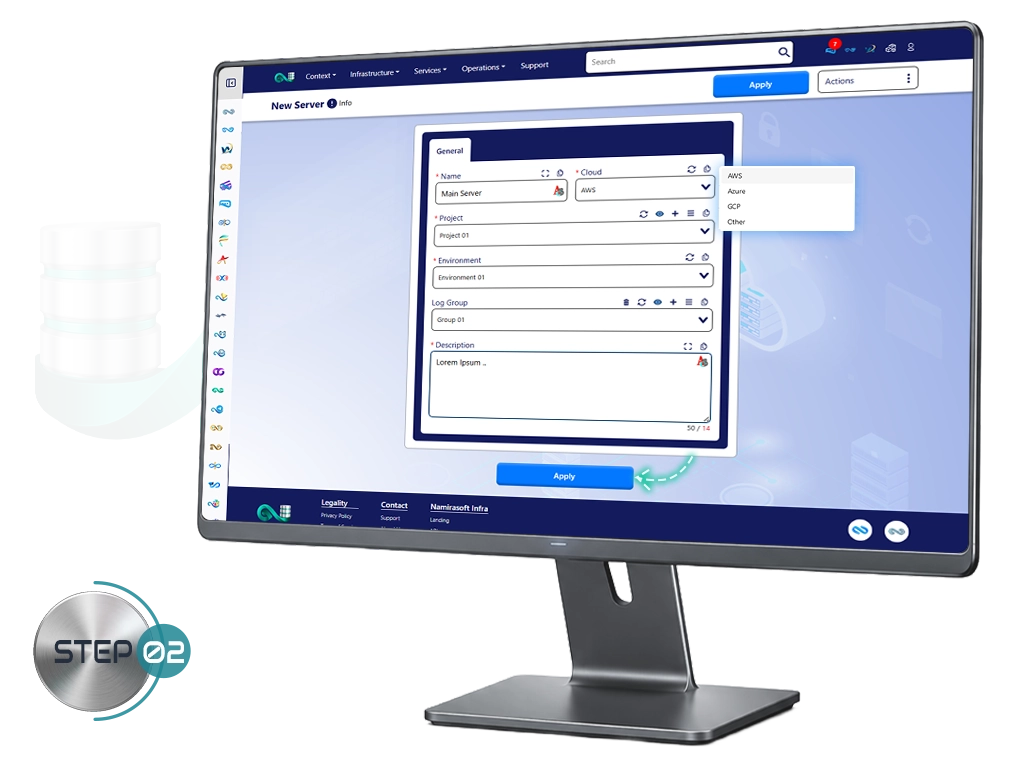
Step 2: Fill In the Server Details
- Enter a Name to identify this server.
- Select the Cloud Provider to specify where this server is hosted. If the hosting provider is unknown, check with the team that provisioned the server.
- Select the Project and Environment to assign this server to the correct deployment context.
- Select a Log Group to retain logs from this server.
- Enter a Description to identify this server’s function.
- Click Apply. You will be redirected to the Server View page.
Step 3: Install the Namirasoft Infra Agent
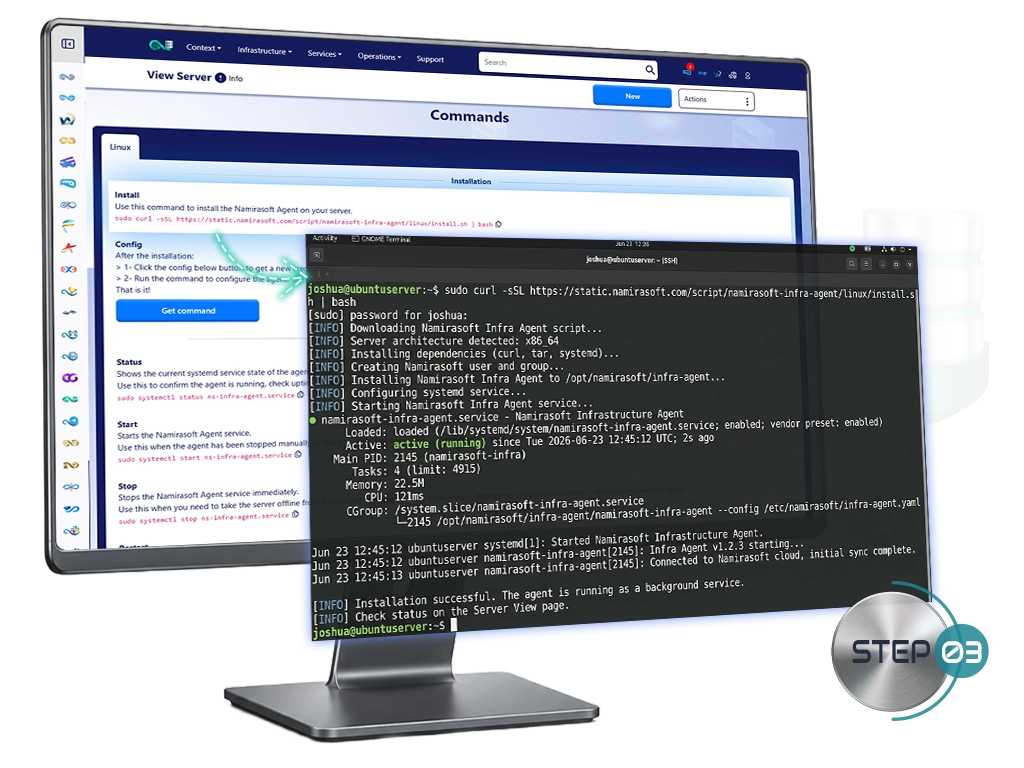
On the Server View page, you will see a Not Connected status. Scroll down to the Installation section.
- Copy the installation command.
- Run it on the server via SSH or a terminal session.
Once installed, the Namirasoft Infra Agent runs as a background service on the server.
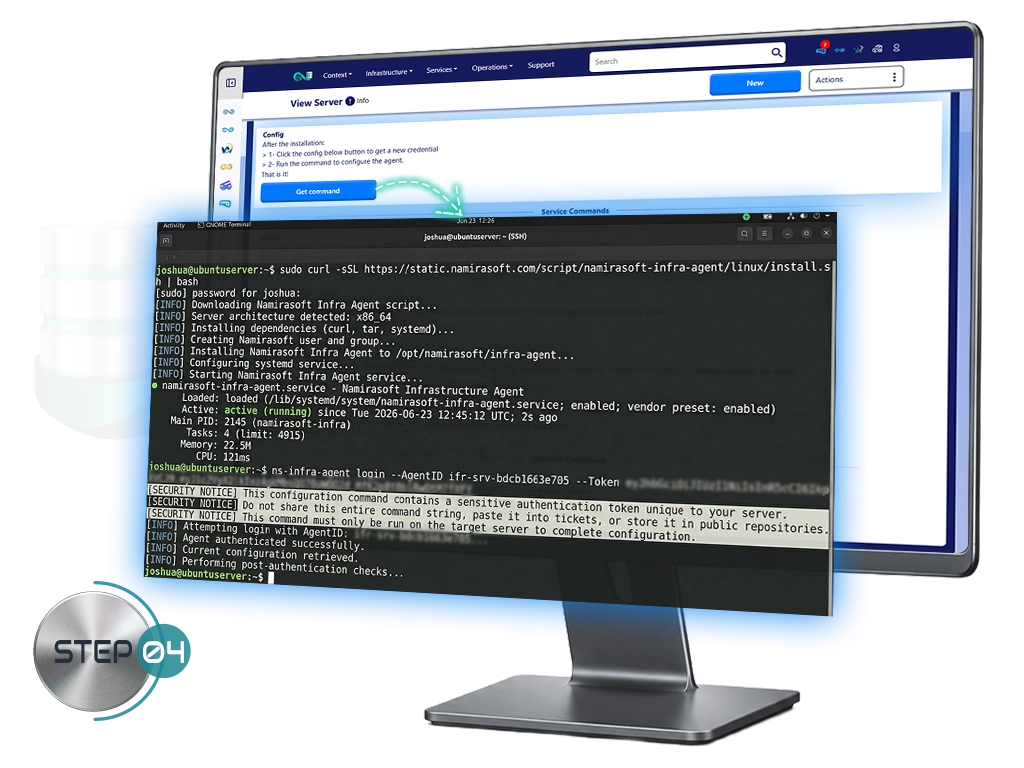
Step 4: Configure the Namirasoft Infra Agent
Once the Namirasoft Infra Agent is installed, proceed with the configuration. Scroll down to the Config section.
- Click Get Command to generate the configuration command.
Security Notice: This command contains a sensitive authentication token unique to your server. Do not share it, paste it into tickets, or store it in public repositories or shared documents.
- Copy the command directly from the console.
- Run the command only on the target server.
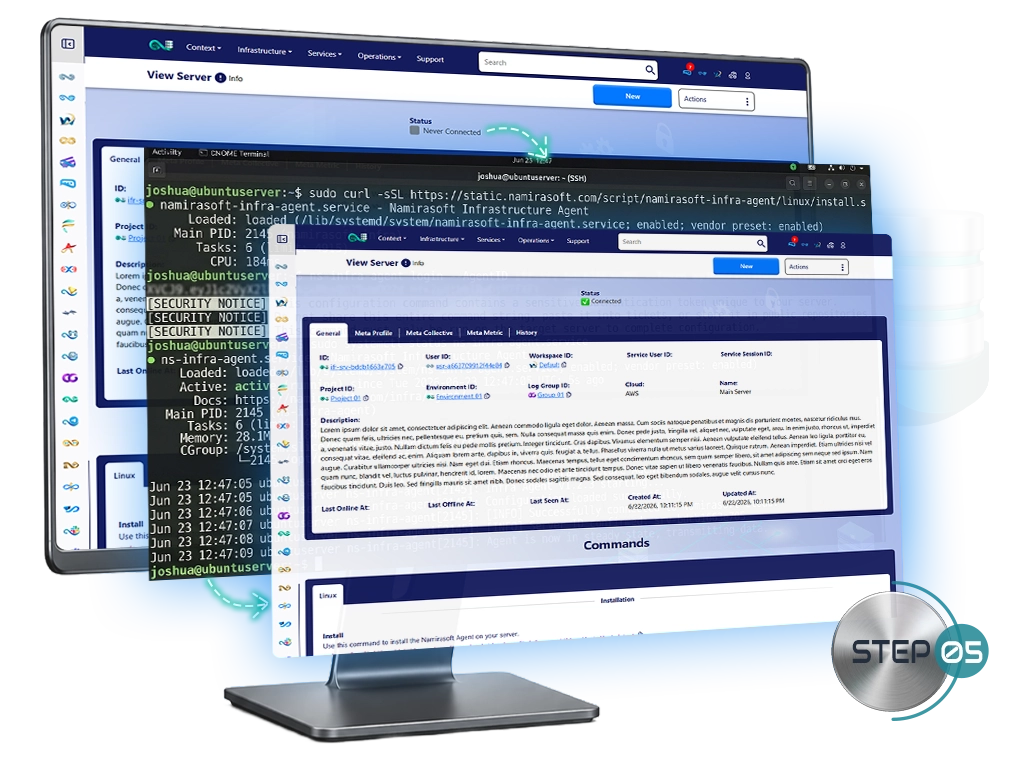
Step 5: Verify the Connection
- Return to the Server View page. The status shows Connected once the Agent is running.
Optionally, you can confirm the connection on the server by running the following command.
Your server is connected!
Ready to investigate your server with Namirasoft Expert, or have questions about your setup?