
How Field Works
Add your own Fields and Categories to your Namirasoft products without code. Namirasoft Field connects custom information to the records your teams already use.
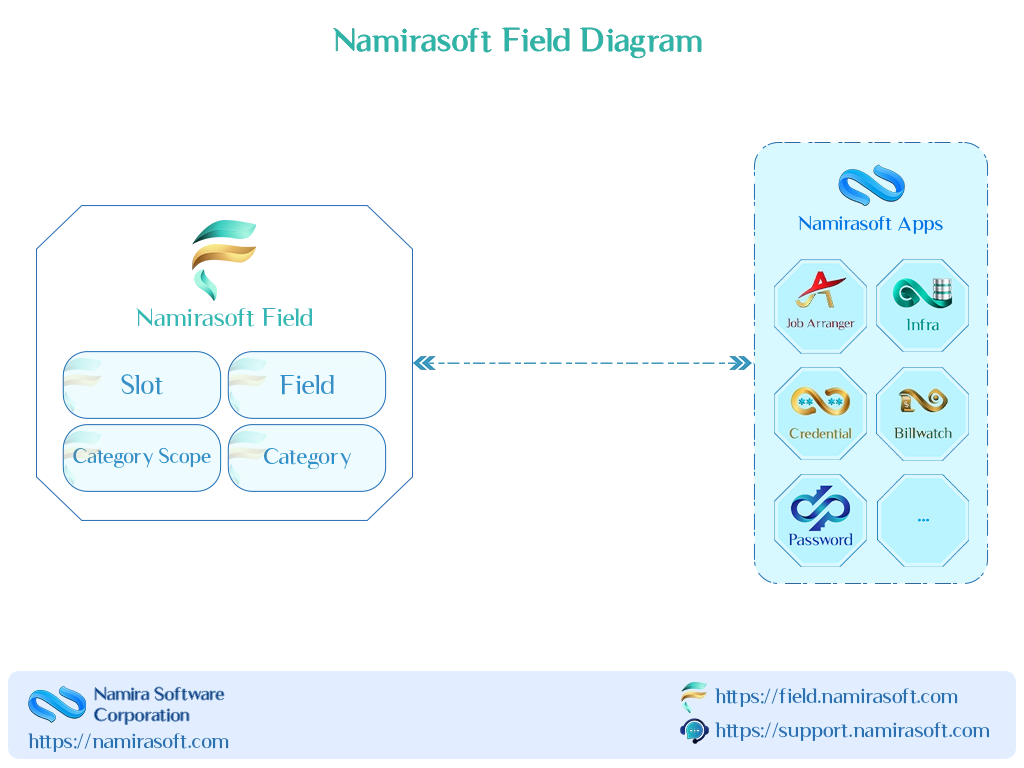
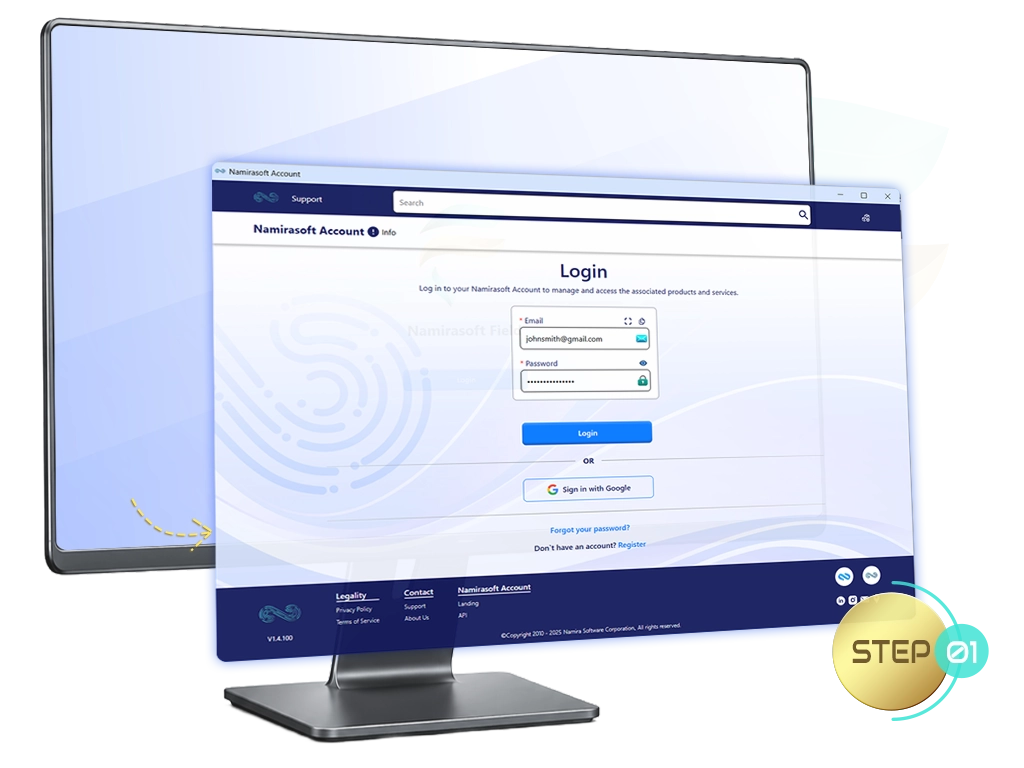
Step 1: Create a Namirasoft Account
Namirasoft Field uses your Namirasoft Account, your single login for every Namirasoft product.
- Sign up for a Namirasoft Account and sign in
Create a Namirasoft Account
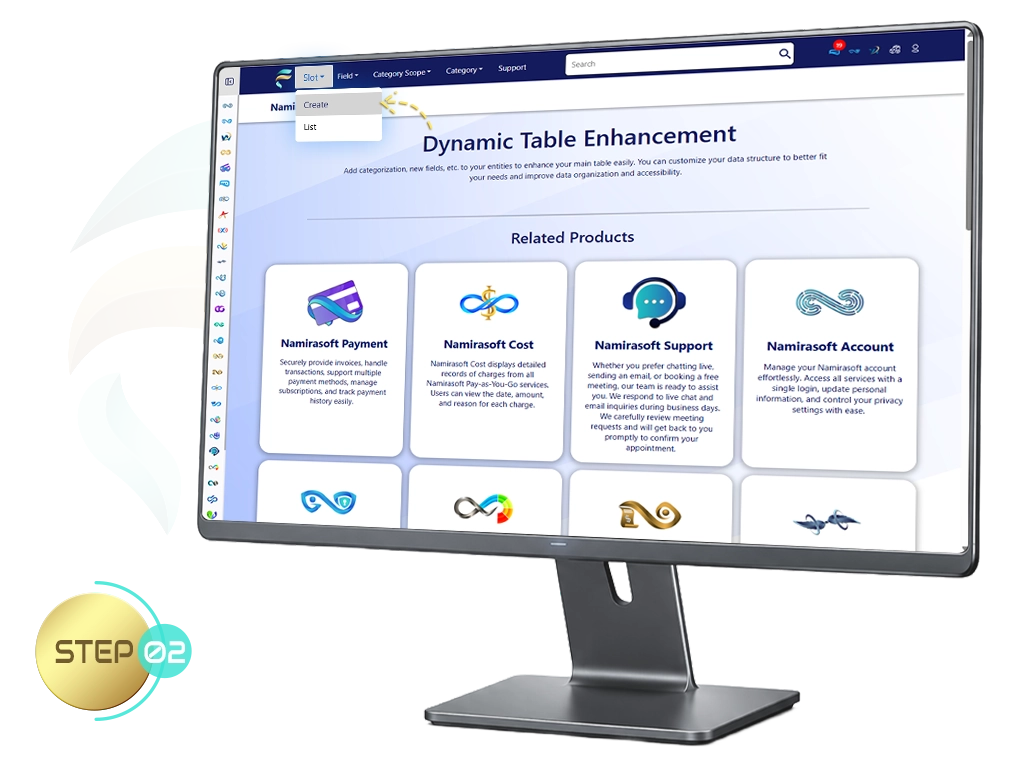
Step 2: Create a Slot
A Slot places a Field or Category Scope onto a record inside a Namirasoft app.
- Open your Namirasoft Field console
- Click Create a Slot
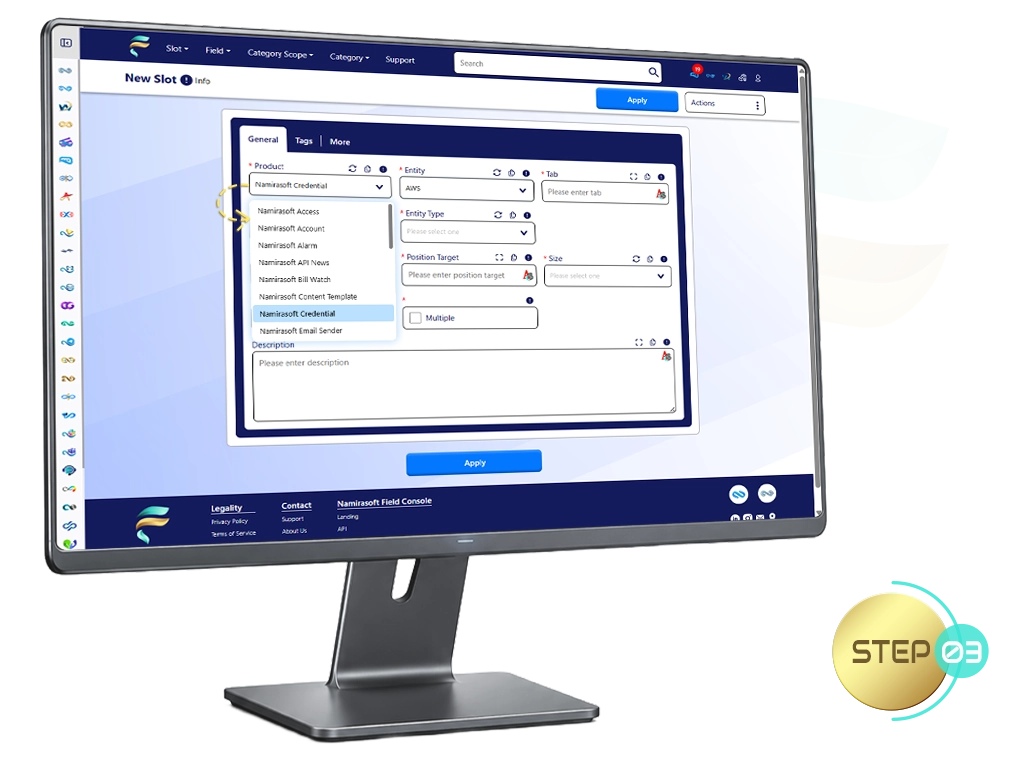
Step 3: Choose the Product and Entity
Tell the Slot which record you want to add to.
- Choose the Product you want to add your information to, for example Namirasoft Credential
- Choose the Entity, the type of record inside that product, for example AWS in Credential
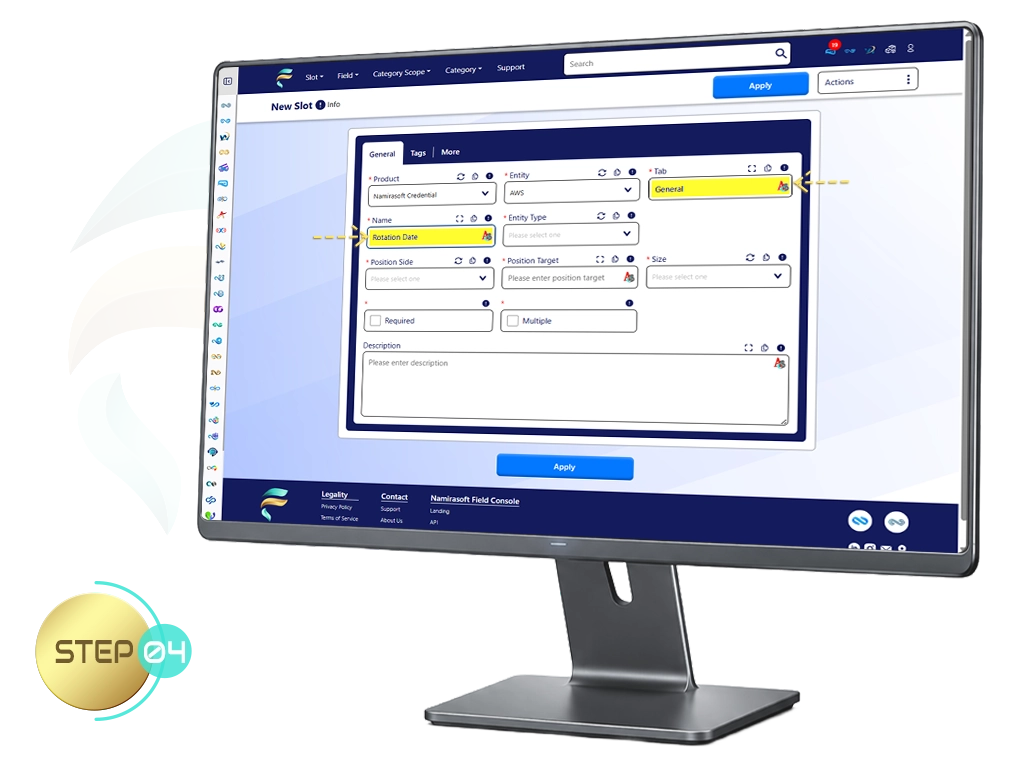
Step 4: Set the Tab and Name
Decide where on the record it appears and give it a label.
- Type the name of the Tab where the Slot appears. The name you enter becomes that tab on the record.
- Enter a Name for the Slot, the label people will see
Step 5: Choose What to Add
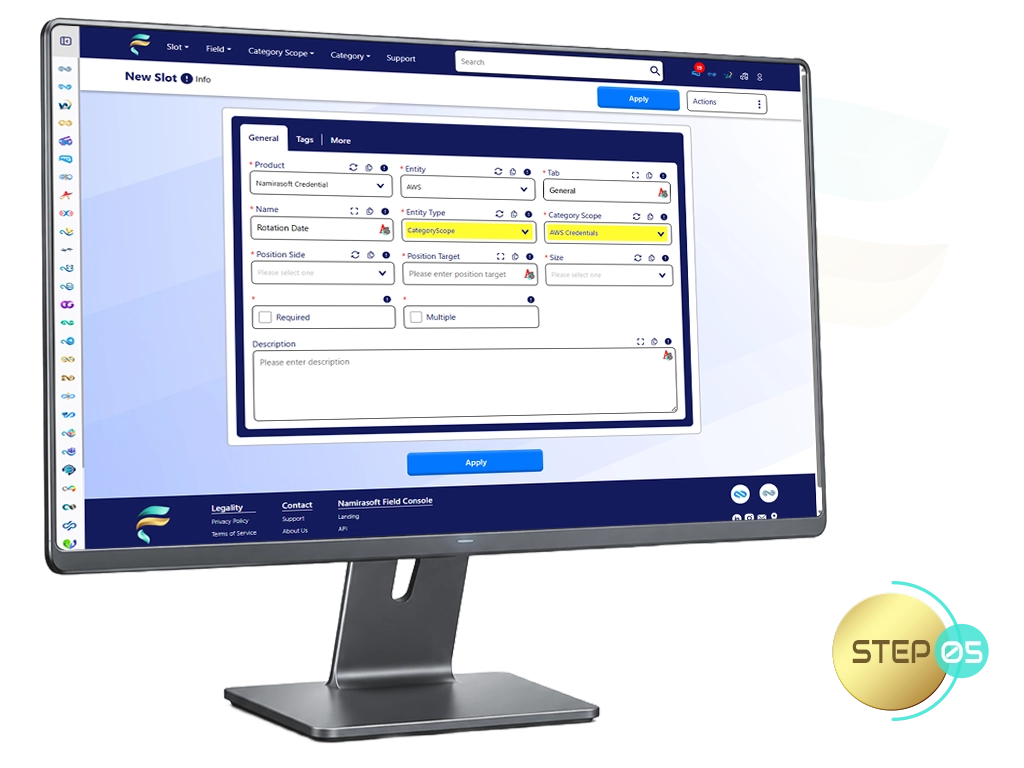
Choose whether the Slot holds a Field or a Category Scope, then select it.
- Set the Entity Type to Field for values such as text, numbers, or dates, or Category Scope for a set of selectable options
- Select the Field or Category Scope you want
Do not have one yet? See how to create a Field or Category Scope.
Step 6: Set the Position
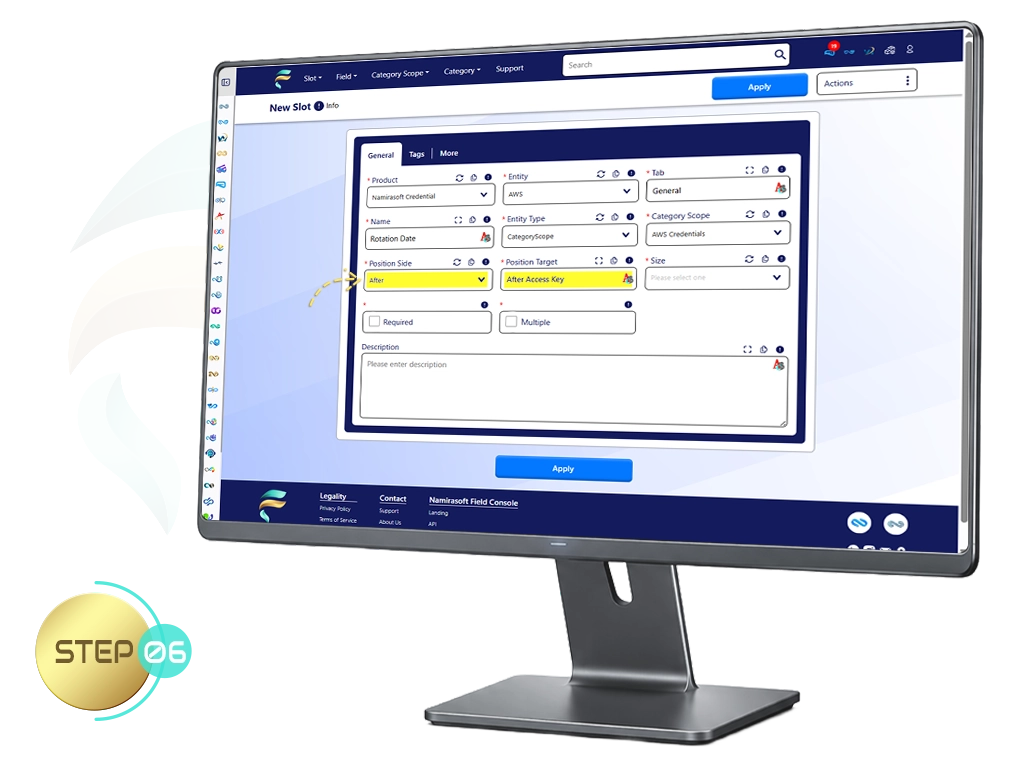
Position the Slot exactly where you want on the record.
- Choose whether it appears before or after an existing field
- Pick that field as the target
Step 7: Set the Size and Rules
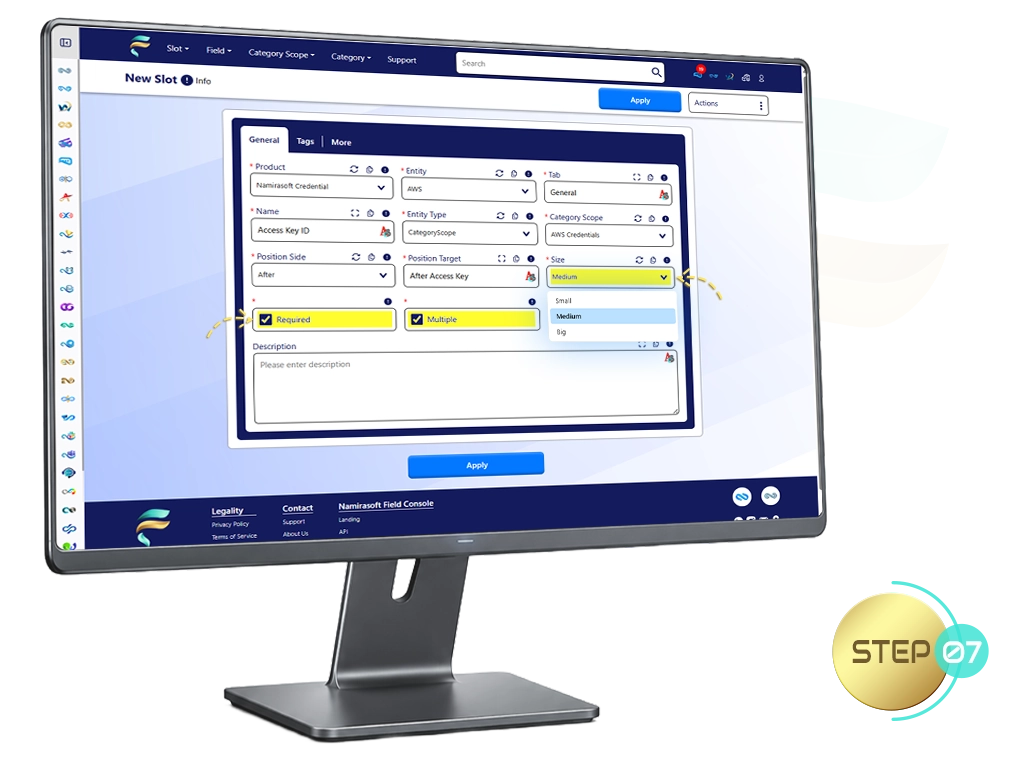
Control how the Slot looks and behaves.
- Set the Size for the Slot. This decides how wide it appears on the record.
- Turn on Required if people must fill the Slot in.
- Turn on Multiple to let the Slot hold more than one value.
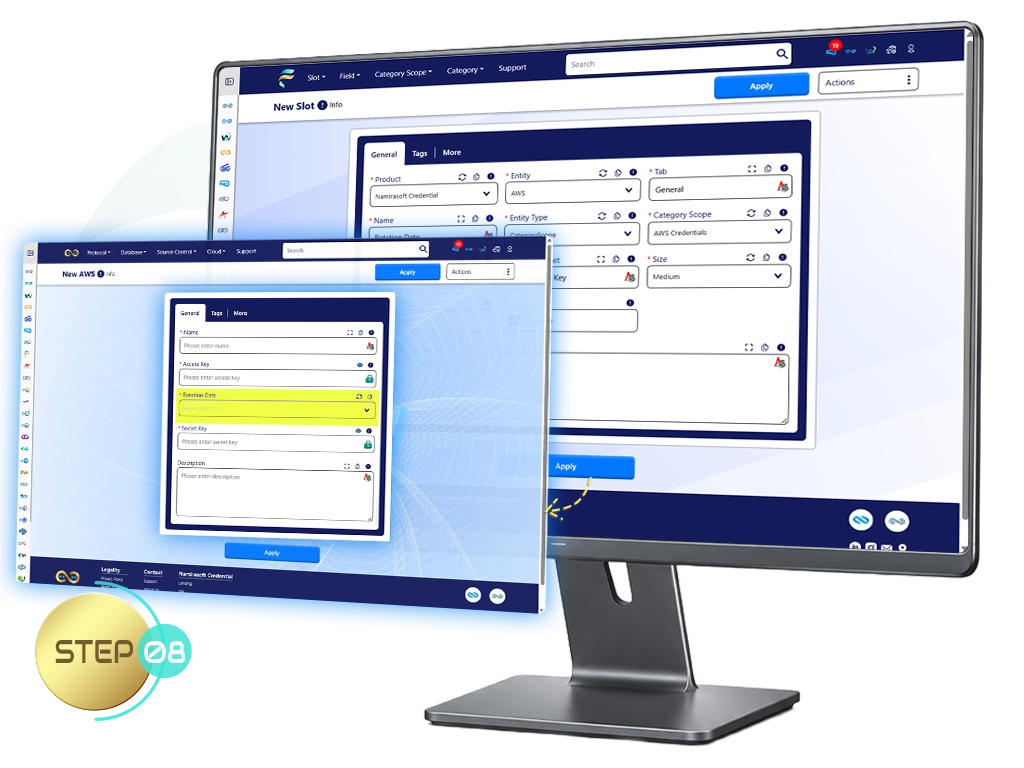
Step 8: Apply and See It
Save the Slot and see it live.
- Click Apply to add the Slot
- Open the record in the target app, and your Field or Category is there, ready to use
Ready to Extend Your Namirasoft Apps?
Log in to Namirasoft Field and start adding custom Fields and Category Scopes to your applications.
How It Works FAQs
Answers to common questions about how to get started and use Namirasoft Field.
1. What is a Slot, and how does it relate to Fields and Categories?
A Slot places a Field or a Category Scope onto a product's entity and tab. A Field captures a value, and a Category Scope offers a set of choices.

2. Do I need to create a Field or Category Scope before making a Slot?
Yes. Create the Field or Category Scope first, then select it when you create the Slot.
3. What types can a Field use?
Fields support types such as Integer, Float, Boolean, and Text, so you can capture the exact kind of value you need.
4. What is the difference between a Field and a Category Scope?
A Field captures a single typed value. A Category Scope holds a set of Categories that users choose from, such as Production, Staging, or Development.
5. Will my Slots appear automatically in other Namirasoft apps?
Yes. Once you create a Slot, it appears automatically on the chosen record inside the target app, with no code.
6. Can I make a Slot required or allow multiple values?
Yes. When you create a Slot you can mark it Required, allow Multiple values, and set its position and size.
7. Can I edit or delete Fields, Category Scopes, and Slots after creating them?
Yes. You have full control and can edit or delete any Field, Category Scope, Category, or Slot at any time.