Import Your Passwords
Bring existing passwords into Namirasoft Password.
Switch from your current password manager without manually recreating your entries. Import your existing passwords in minutes using a CSV file.
Approximate import time: 2 to 5 minutes

Before You Begin: Export to CSV
Start by exporting your current passwords as a CSV file. Most password managers and browsers can do this in a few clicks.
Open your manager
Open your current password manager.
Export as CSV
Export your passwords as a CSV file.
Save it safely
Save the file to a trusted device, then continue below.
Keep it safe: a CSV file contains your passwords as plain text. Store it only on a trusted device and delete it once your import is confirmed.
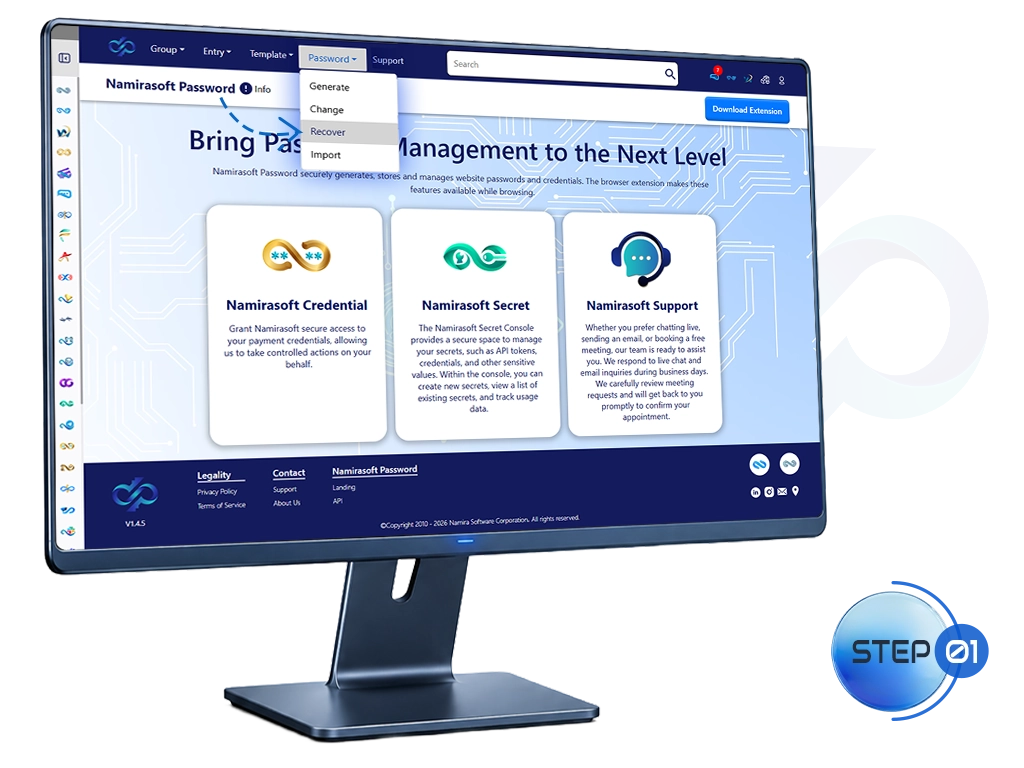
Step 1: Open Import
Start in the Console
Importing happens in the Namirasoft Password Console.
- Go to the Namirasoft Password Console
- Open the Password menu
- Choose Import
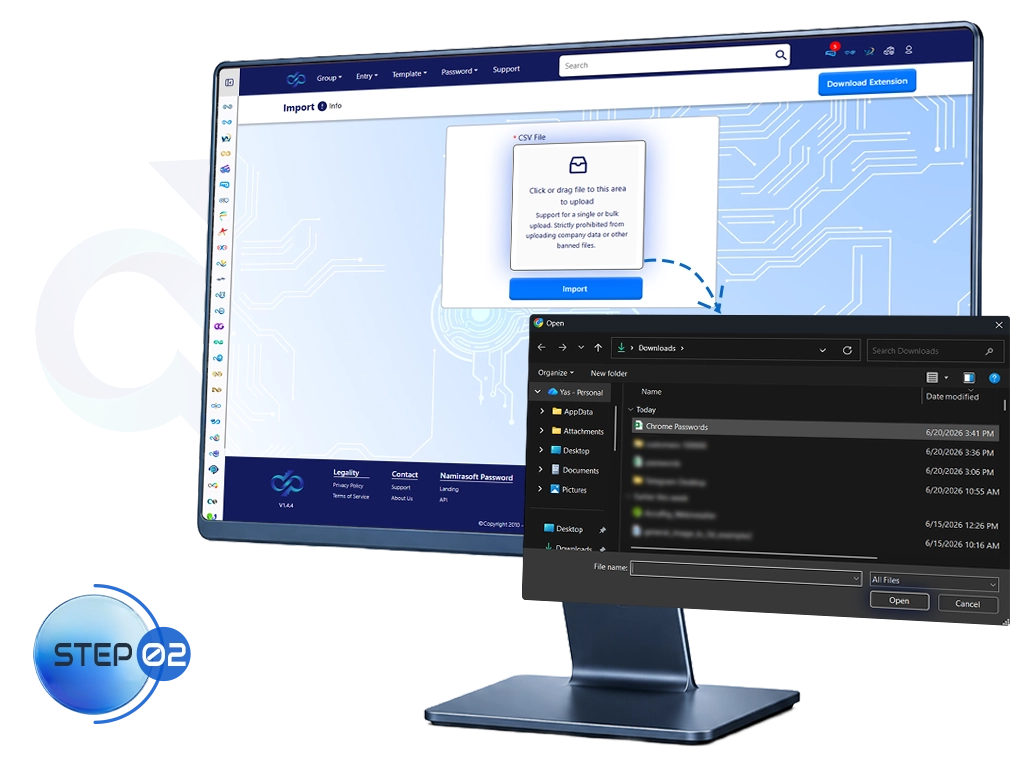
Step 2: Upload Your CSV
Add Your CSV File
Upload the CSV file you exported from your current password manager.
- Drag your CSV file onto the upload box, or click to browse
- Click Import
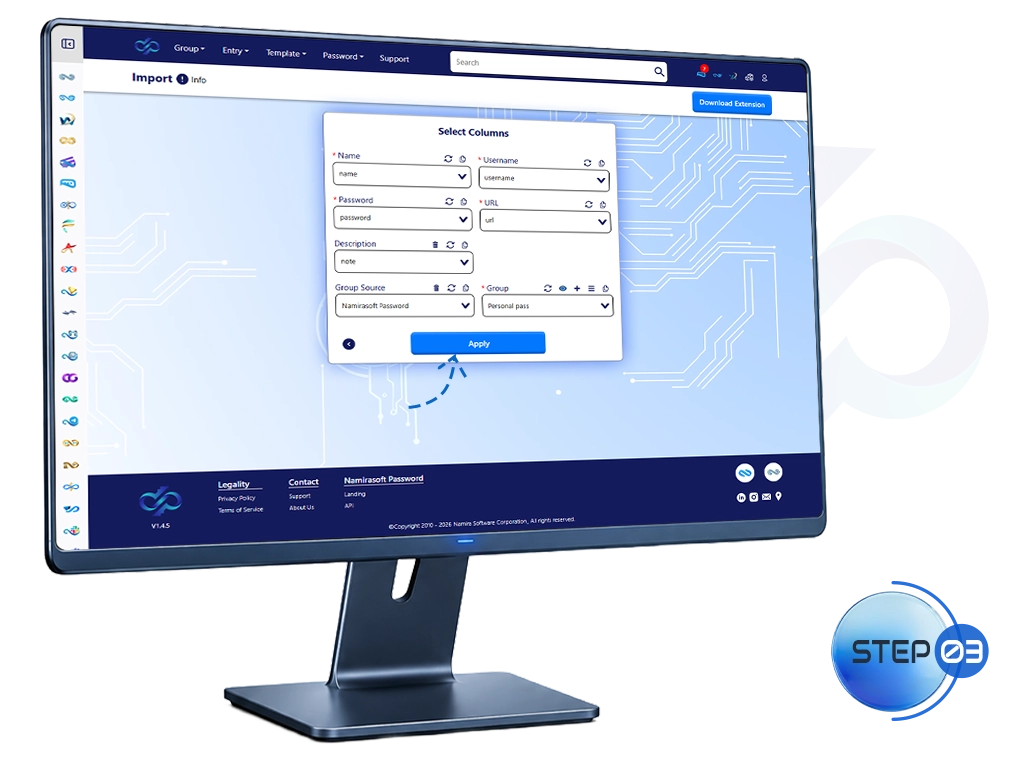
Step 3: Map Your Columns
Mapping
Match each Namirasoft Password field to the corresponding column in your CSV file. This ensures your data is imported into the correct fields.
- Open each dropdown
- Select the matching CSV column
- Click Apply
Important: Nothing is imported yet.
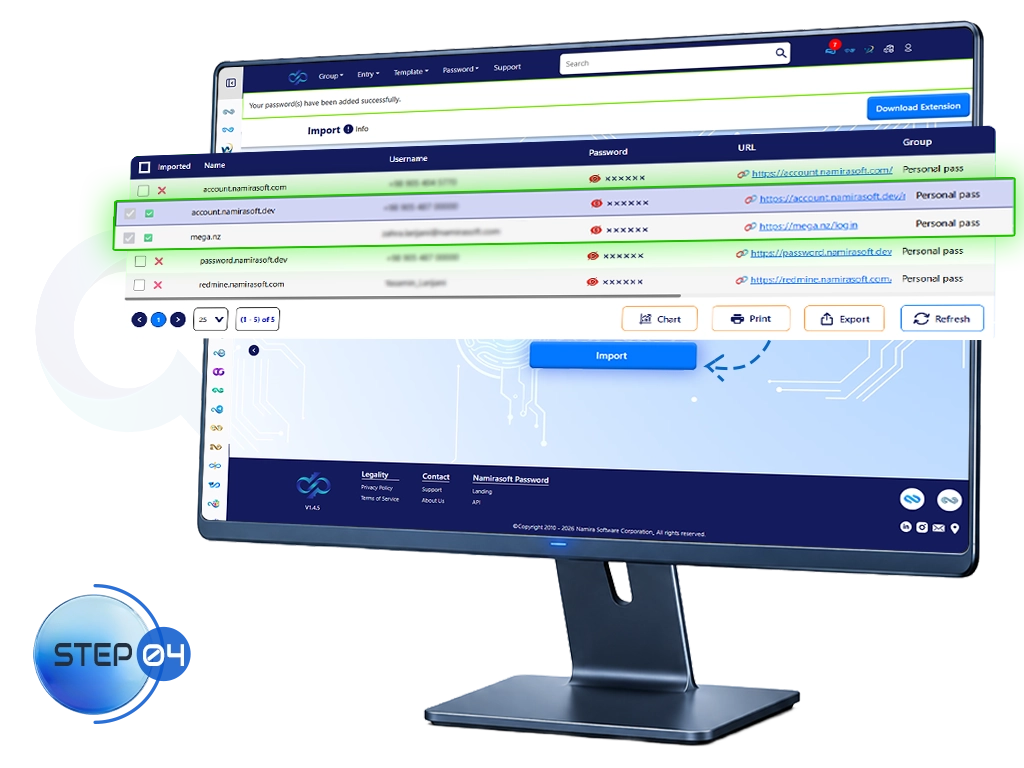
Step 4: Select and Import
Choose What to Import
Your entries appear in a preview before anything is imported.
Only the entries you tick are imported.
- Tick the entries you want to import, or use the header checkbox to select all
- Click Import
Imported entries are protected by your Master Password.