
How Inference Works
Build and manage AI execution flows.
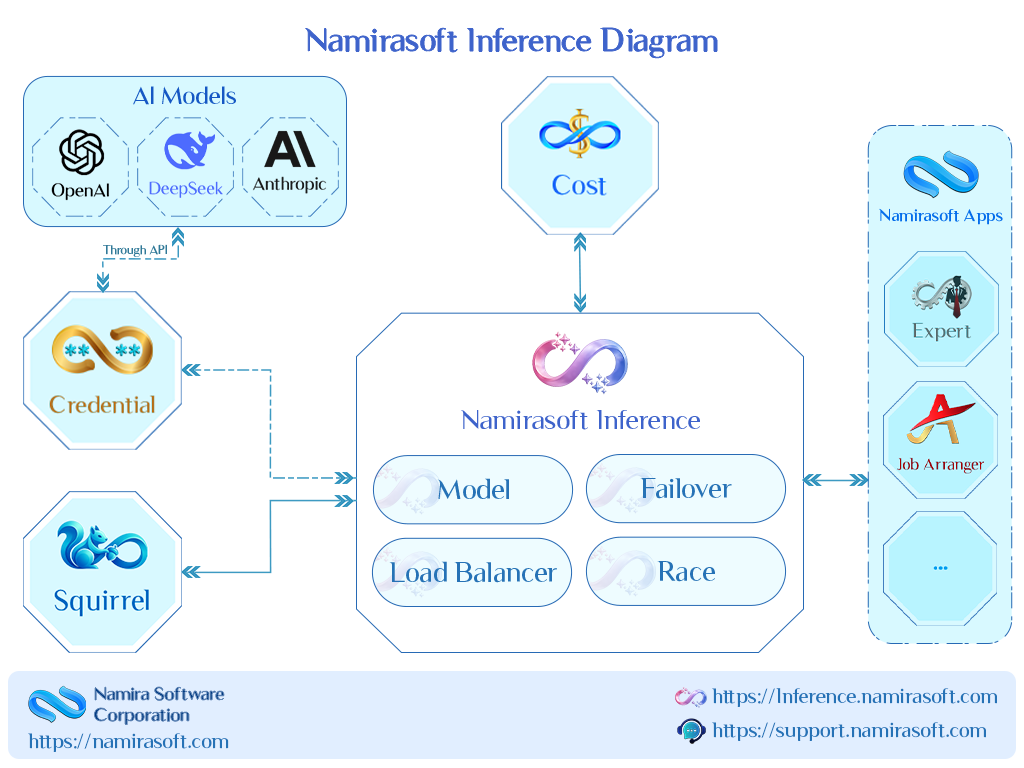
Namirasoft Inference is the place where AI execution is configured and managed. Create inferencers, connect AI models, and define how each request moves through the system before returning a response. Each inferencer can be extended with additional layers for memory, validation, cost limits, data cleanup, and debugging.
Below, each inferencer is shown in motion, from direct model execution to advanced workflows that combine multiple execution paths.
Model
Direct model execution
A Model sends a request directly to the AI model you configure and returns the response.
- Select from 80+ providers and 500+ AI models.
- Add your provider API key through Namirasoft Credential.
- Send requests directly to the selected model.
Load Balancer
Distribute requests across multiple targets
A Load Balancer distributes incoming requests across multiple inferencers based on the strategy you define.
- Add multiple target inferencers to receive requests.
- Set Weights to control how requests are distributed across targets.
- Choose the balancing Algorithm: Random or Round Robin.
Failover
Continue execution when a target fails
A Failover automatically moves a request to the next target when the current target returns an error or exceeds its configured timeout.
- Define the target order.
- Configure Timeout limits for each target.
- Return the first successful response.
Race
Get the fastest successful response
Create a Race by selecting multiple targets that should process the same request at the same time.
- Add multiple target inferencers.
- Run targets simultaneously.
- Return the first successful response.
Router
Route requests using your rules
Create a Router by defining paths that decide where each request should go.
- Add multiple routes with a Default Inferencer.
- Define routing rules using Conditions and Condition Groups.
- Use Classifiers to route requests based on meaning.
Gateway
Wrap execution with additional controls
Create a Gateway by selecting an inferencer and attaching the components that should run before and after execution.
- Apply input and output Guard Rails.
- Attach Memory and Knowledgebases.
- Validate responses with a Validator, and correct invalid output automatically through your chosen corrector inferencer.
Combine Inferencers
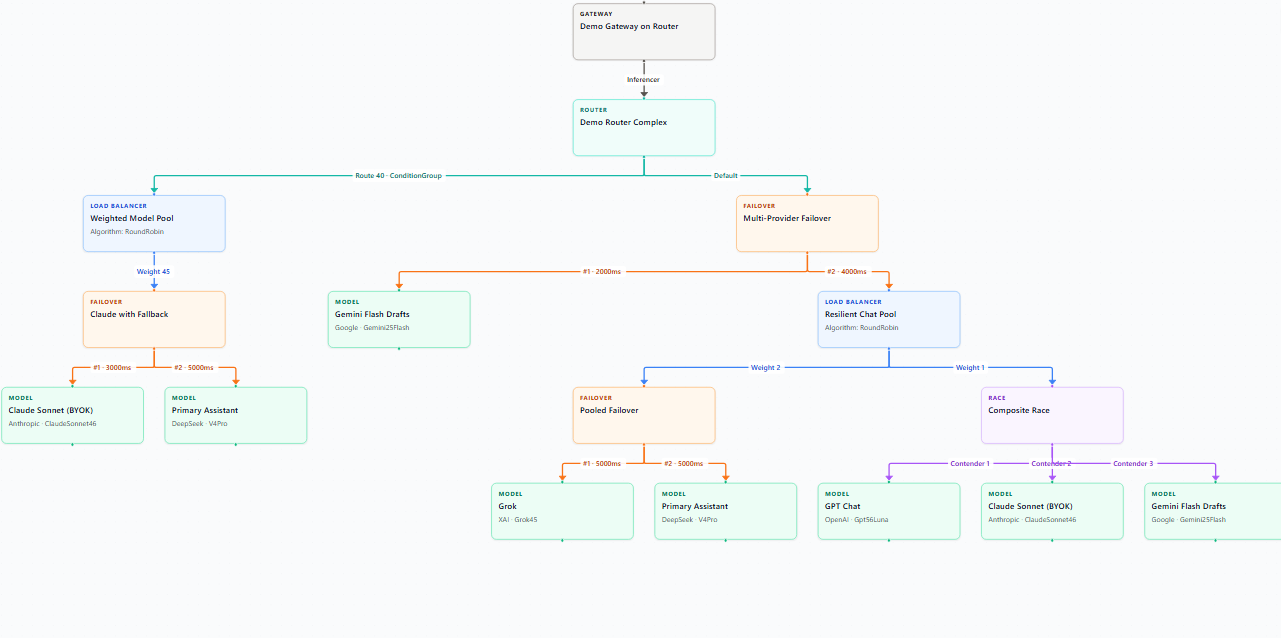
Inferencers are composable building blocks for AI execution. Connect them together to create flows where requests can be routed, balanced, retried, validated, or enhanced before a final response is returned. Your application sends one request to the flow and receives one response.
Ready to build your AI execution flow?
Configure your first inferencer with help from our team.
How It Works FAQs
Common questions about setting up and using AI models in Namirasoft Inference.
1. What is an inferencer?
An inferencer is the execution unit in Namirasoft Inference. Your application sends a request to an inferencer, and the inferencer determines how that request is processed and completed. A Model calls one AI model directly, a Load Balancer distributes requests, a Failover switches targets on failure, a Race keeps the first successful response, a Router chooses execution paths, and a Gateway wraps execution with additional processing.

2. How can I connect my own AI provider API key?
You add your provider API key through Namirasoft Credential, and the key value stays encrypted through Namirasoft Secret. Namirasoft Inference retrieves the credential securely when it executes a request, so your key never appears inside requests or application code.
3. How can I connect my application to Namirasoft Inference?
Your application connects through the Namirasoft Inference API. Any stack that can call an HTTP API works, including Node.js, React, and PHP applications, and the NPM and PHP SDKs cover the most common setups. The full reference is available in the Documentation.
4. How does a Load Balancer distribute requests?
A Load Balancer sends each request to one of its target inferencers. You define the targets, set a Weight for each one, and choose the Algorithm, Random or Round Robin. Traffic then spreads across your execution paths in the ratio you set.
5. What are Log Groups used for?
A Log Group collects the info and error logs of the entities you assign to it. When a request needs debugging, the logs show what happened at each entity during processing, so you can see exactly how a request was handled.
6. How does a Validator work?
A Validator checks whether an AI response matches the format you define, such as JSON, YAML, or XML. When validation fails, it either returns an error or calls the corrector inferencer you chose to fix the response, and the Retry Count limits how many correction attempts run.
7. How do Guardrails protect AI requests?
Guard Rails screen the user prompt, the AI output, or both. Rules cover unsafe content detection, PII protection, prompt injection detection, and your own custom rules, and the request stops with a clear error when a rule matches.
8. What is the difference between Conditions and Classifiers?
A Condition evaluates explicit properties of a request, such as its text, length, or tags, so routing follows the criteria you state directly. A Classifier reads the request and assigns it to the classes you define, so routing can follow meaning instead. Conditions can also check the classes a classifier assigns.
9. Will changing AI models remove previous conversation context?
No. AI models do not remember previous messages on their own. Namirasoft Inference keeps conversation context in Memory, independent of the model, so switching models keeps the stored context when Memory is attached.
10. Can I use multiple AI models for the same request?
Yes. A Load Balancer spreads requests across several models, a Failover tries them in order until one answers, and a Race calls them at the same time and keeps the first successful response. Any inferencer can be a target, so these patterns also combine.
Still have questions?
Our team can help you find the right setup.