
How do I assign the Cost Management Reader role in Azure?
To allow Namirasoft Bill Watch to monitor your Azure cost and usage data, you need to assign the Cost Management Reader role to the correct Azure account, user, or service principal. This role grants read-only access to billing information without exposing permissions to modify resources.
Follow the steps below to assign this role securely:
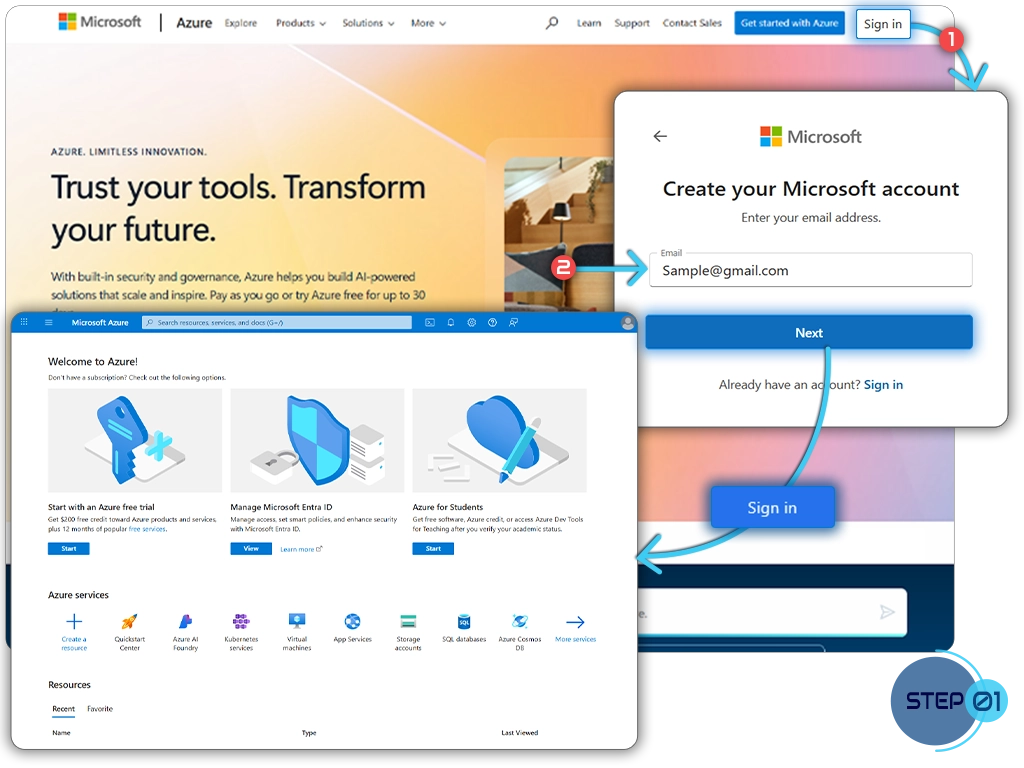
Step 1: Sign in to Azure Portal
Go to the Microsoft Azure Portal and log in with an account that has Owner or User Access Administrator permissions.
Step 2: Navigate to the Subscription
-
In the left-hand menu, select Subscriptions.
-
Click the subscription where you want to grant permissions.
Step 3: Open Access Control (IAM)
- In the subscription menu, select Access control (IAM).
- Click + Add → Add role assignment.
Step 4: Assign the Cost Management Reader Role
-
In the Role dropdown, select Cost Management Reader.
-
In the Assign access to dropdown, choose User, group, or service principal depending on who or what needs access.
-
Search and select the user, application, or service principal (e.g., Namirasoft Bill Watch).
-
Click Save to assign the role.