
How Telegram Sender Works
Create a Provider and start delivering messages through Telegram.
Namirasoft Telegram Sender lets you deliver messages to any Telegram user, group, or channel.
This guide walks you through the essentials, from finding your Chat ID to setting up bots and providers for manual or automated delivery.
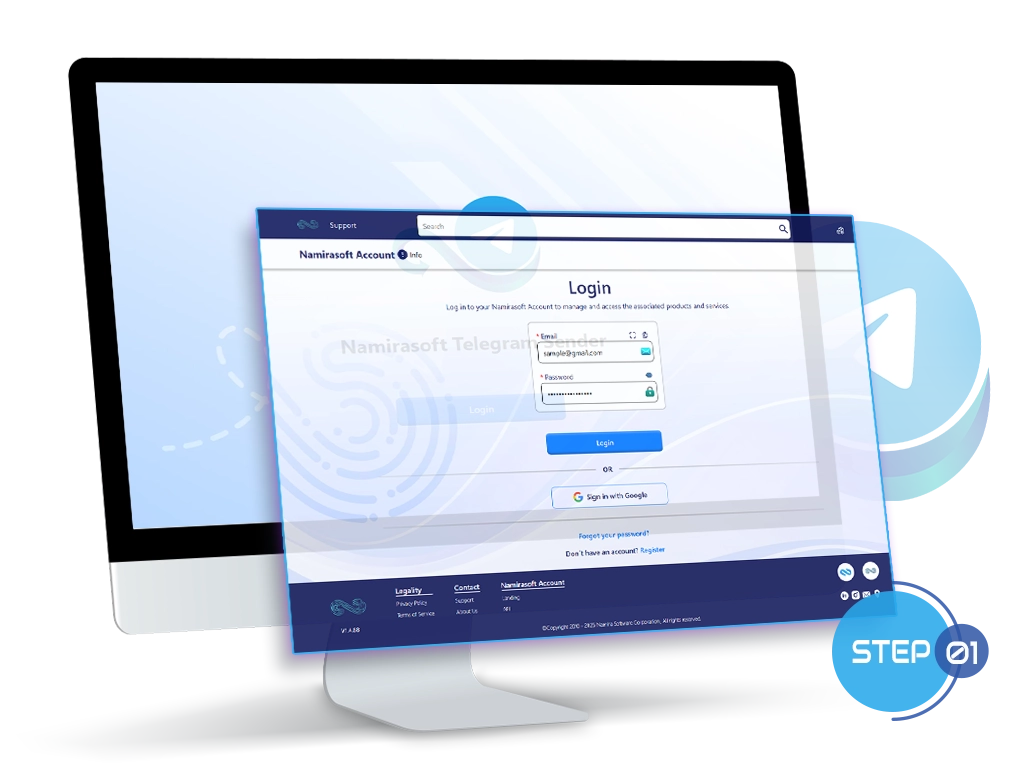
Step 1: Create Your Namirasoft Account
Namirasoft Telegram Sender runs on a free Namirasoft Account, the single login you use across every Namirasoft app. Create one in a minute to open the console and start building Providers.
Create Your Namirasoft Account
Step 2: Start Creating a Provider
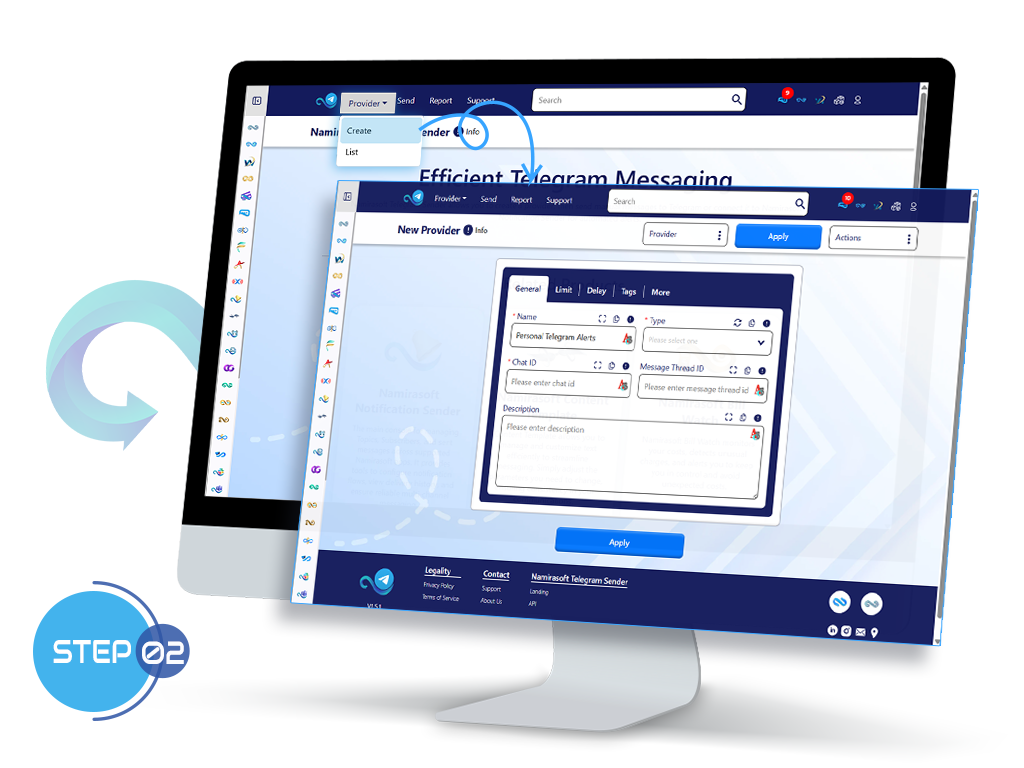
A Provider is the saved configuration that tells Namirasoft Telegram Sender where and how to deliver your messages. Open the Provider form to begin.
- Open the Namirasoft Telegram Sender Console.
- Go to the Provider tab.
- Click Create to open the Provider form.
- Enter a Name and an optional Description for the Provider.
Step 3: Enter Your Telegram Chat ID
- First, get your Telegram Chat ID.
How to get Telegram Chat ID? ▶
Telegram Bot API
Works for all chat types, recommended. See the full step by step guide
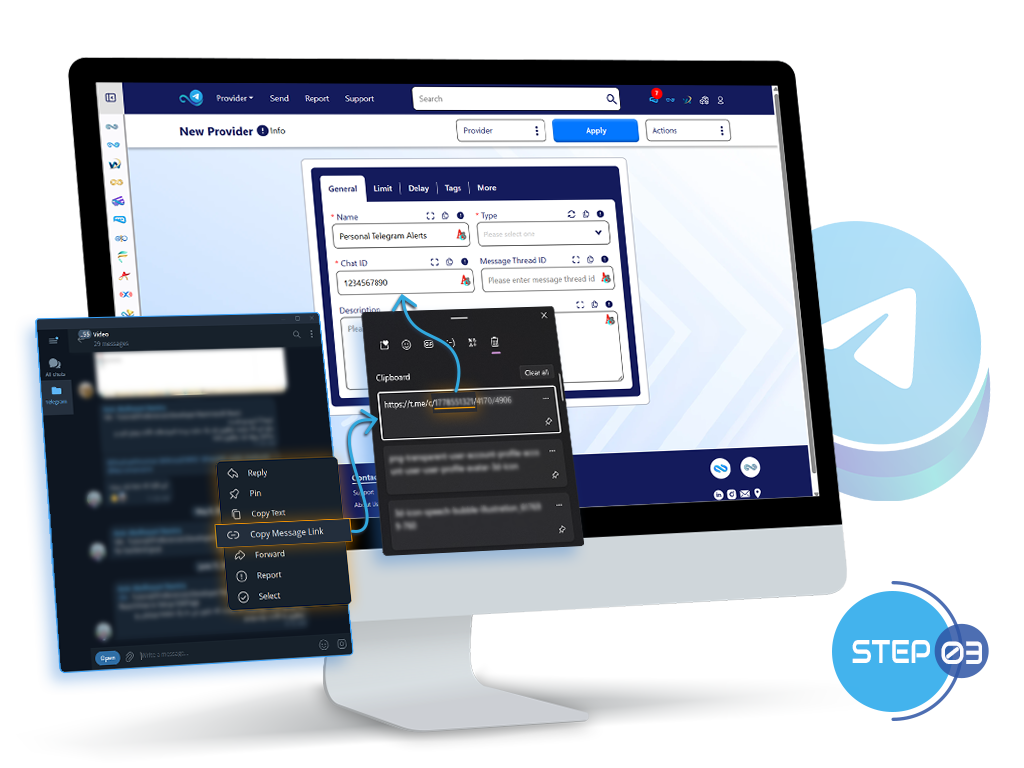
orCopy Message Link
For groups with Topics enabled.
- Right-click a message in the topic and choose Copy Message Link.
- You get a link like
t.me/c/1234567890/2/15. - Add
-100before the first number:-1001234567890.
- Enter the Chat ID in the Provider form.
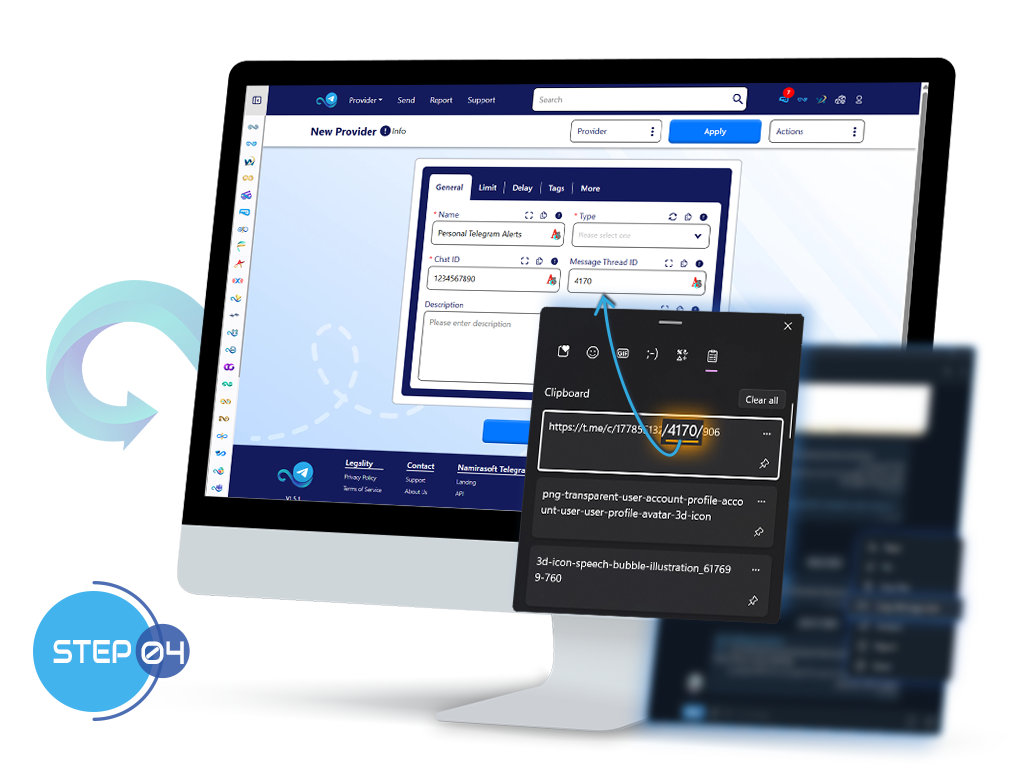
Step 4: Get the Message Thread ID
- The Message Thread ID is optional. You only need it to reach a specific topic in a group with Topics enabled.
How to get the Message Thread ID? ▶
It is the second number in the message link, the same link you used to derive your Chat ID.
Example:
t.me/c/1234567890/2/15gives Message Thread ID = 2. - Enter the Message Thread ID in the Provider form (optional).
Step 5: Choose the Bot Type
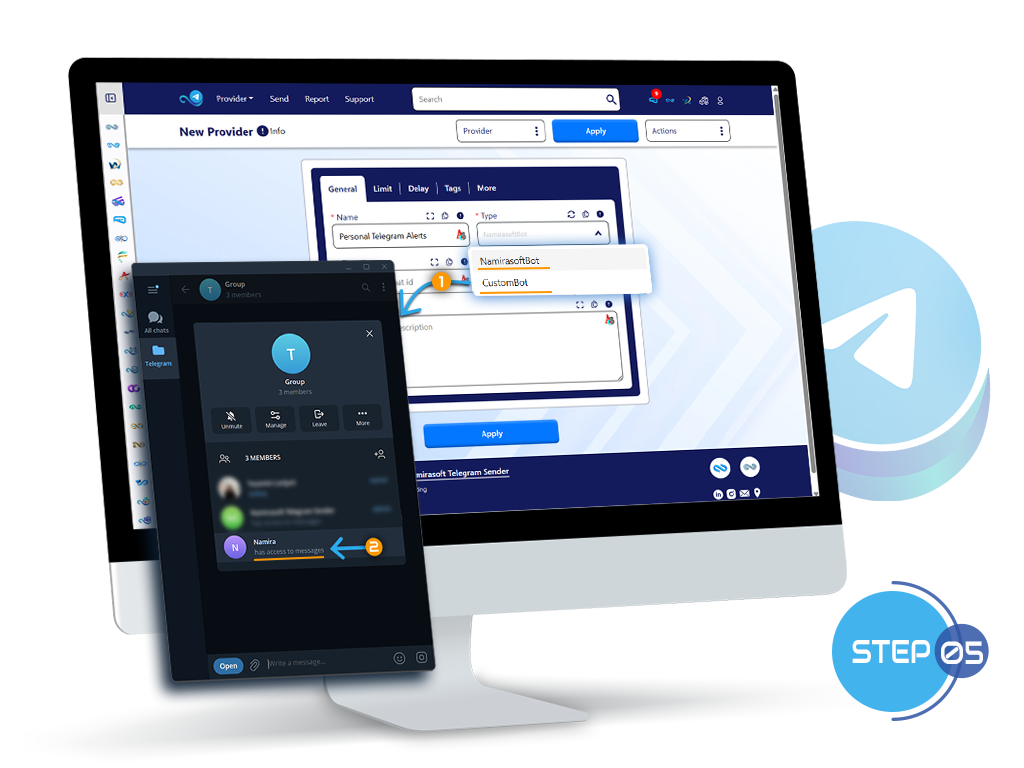
- A Telegram bot delivers your messages. Use either type:
Built-in Namirasoft bot
The ready made @namirasoft_telegram_sender_bot. No setup needed.
More info ▶
Add @namirasoft_telegram_sender_bot to your chat, then select it in the Provider form.
orYour own custom bot
Create it with BotFather and connect it with its API Token.
More info ▶
Create a bot with BotFather, copy its API Token, and paste it into the Provider form. See the full guide
- Select your bot in the Provider form. For a custom bot, paste its API Token as well.
Step 6: Verify Your Provider
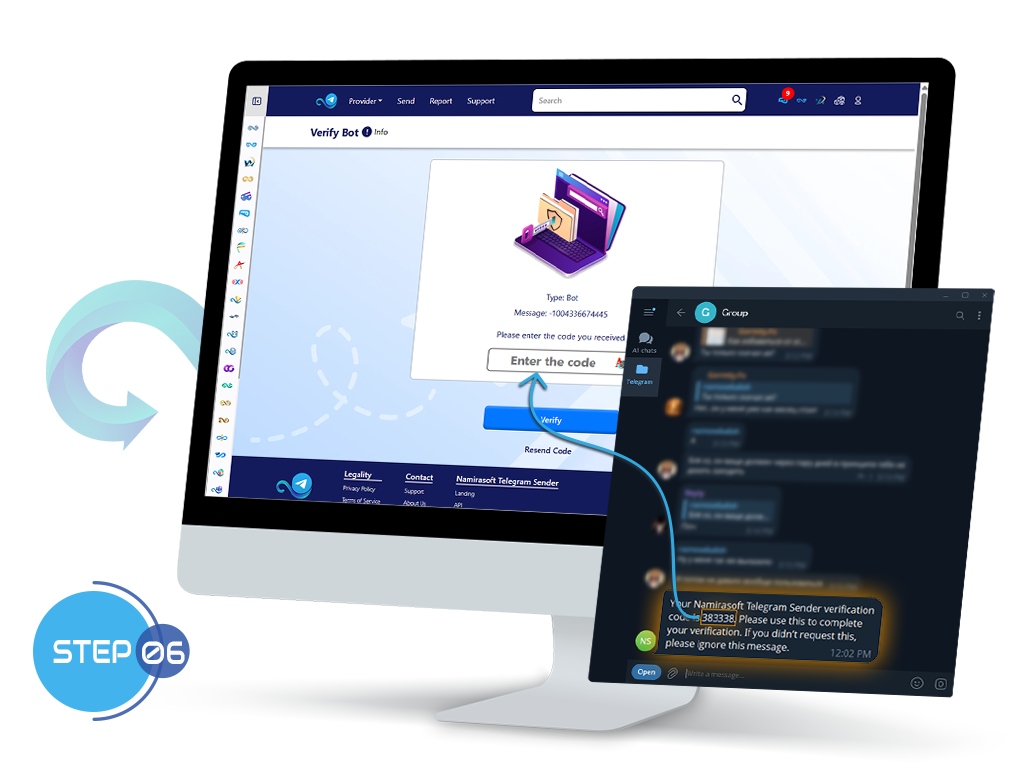
Verify your Provider to confirm everything is set up correctly.
- Namirasoft Telegram Sender sends a verification code to your chosen Telegram chat.
- Find the code in that chat.
- Enter the code in the console to confirm the Provider.
Step 7: Send Messages
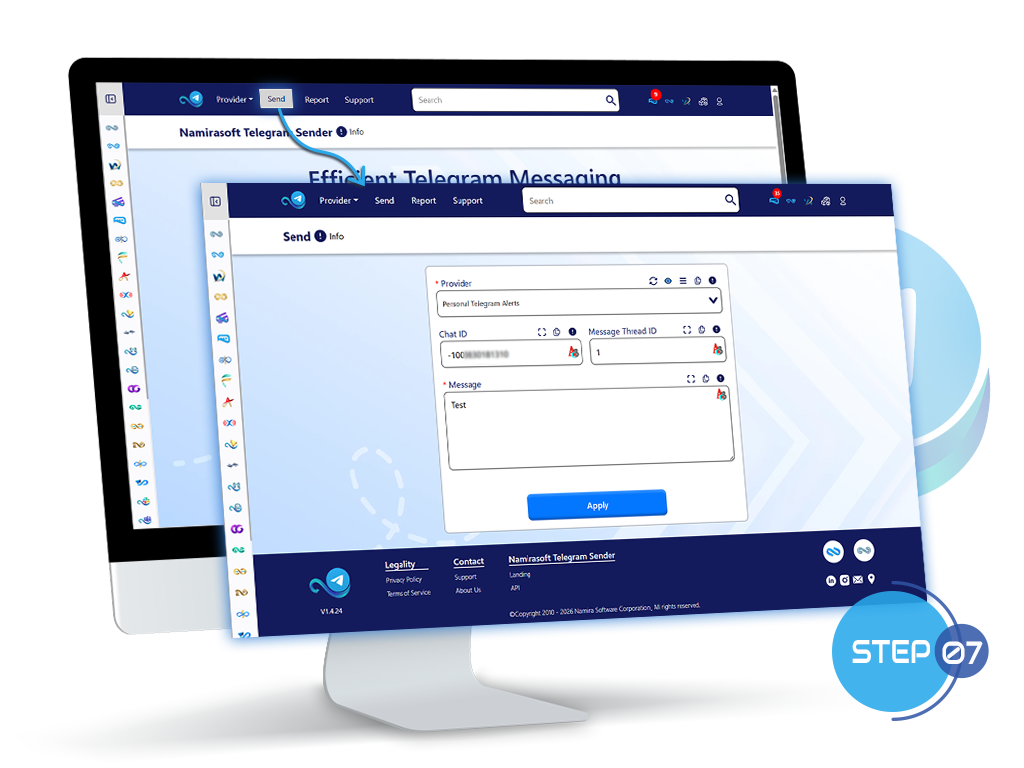
Once your Provider is set up, you can start sending messages.
Messages can be delivered in two ways:
- Manual delivery: Send messages directly from the Send section in Telegram Sender console.
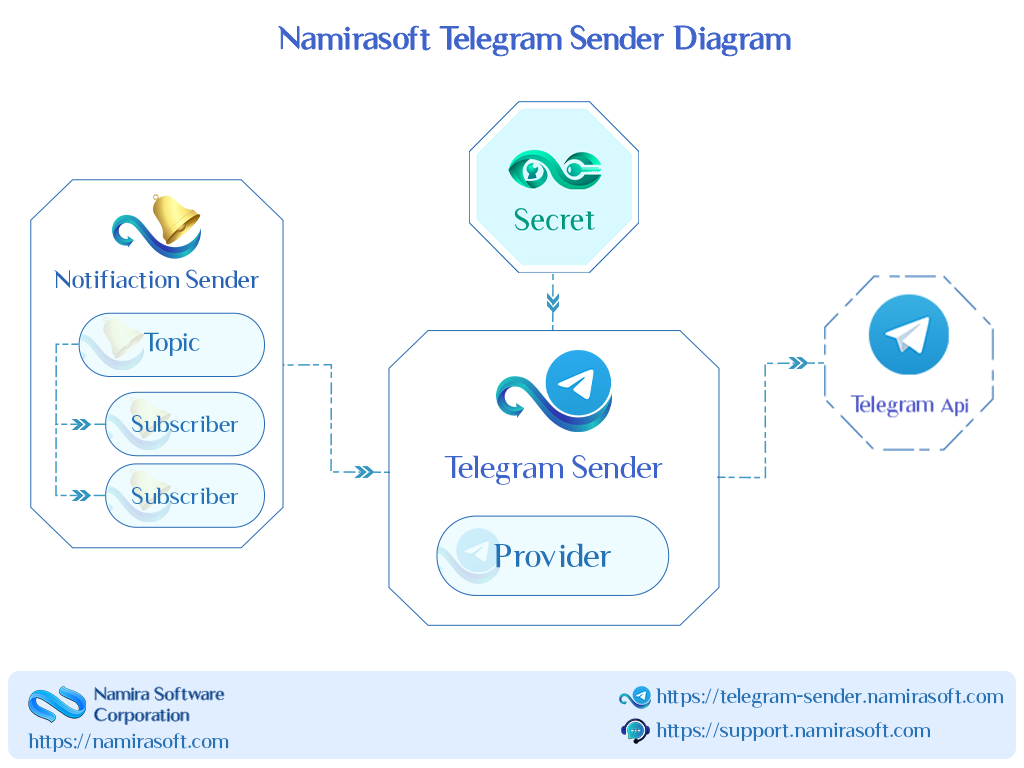
- Automated delivery: Use Namirasoft Notification Sender to route alerts and messages through your Telegram Provider.
Ready to Deliver Messages Through Namirasoft Telegram Sender?
How It Works FAQs
Answers to common questions about how to get started and use Namirasoft Telegram Sender
1. What is the purpose of the Telegram Chat ID, and how do I find it?
The Chat ID tells the system where your messages should be delivered in Telegram (user, group, supergroup, or channel).
To retrieve your Chat ID, follow the steps in Find Your Telegram Chat ID via API.
If you're using a group with Topics enabled, you can alternatively use the Copy Message Link method.

2. When do I need the Message Thread ID, and how do I find it?
The Message Thread ID is only required if you're sending messages to a specific topic in a Telegram group with Topics enabled. To get it, right-click or tap any message in that topic, select Copy Message Link, and extract the second number in the URL. For example, in https://t.me/c/1111111111/2/33, the thread ID is 2.
3. Do I need my own Telegram bot to use Telegram Sender?
No. You can either use the built-in Namirasoft Bot at @namirasoft_telegram_sender_bot for quick setup or connect your own Telegram bot. Just make sure the selected bot is added to the chat and has permission to send messages.
4. How are automated messages sent to Telegram from other Namirasoft apps?
Automated delivery happens through Namirasoft Notification Sender. When configuring a subscriber in that app, choose Telegram as the sender type and select your provider. Messages sent to that subscriber will be routed through the chosen provider in Namirasoft Telegram Sender.
5. Can I test or send one-time messages through Telegram Sender?
Yes. Use the Send tab in Namirasoft Telegram Sender Console to manually send messages. Just select your provider, enter the message, and click Send.
6. What does a "Telegram provider" mean in this context?
A Telegram provider is your saved configuration that includes your chosen bot, Chat ID, and optional Thread ID. It’s what tells the system exactly where and how to deliver messages.
7. Do I need to configure a new provider for every chat or channel?
Yes. Each chat, group, or channel has a different Chat ID, so you must create a separate provider for each destination you plan to send messages to.