
Set Up Your AI Agent in Eight Steps
Connect your infrastructure, configure your AI agent, and start investigating incidents using live operational data.
Follow eight simple steps to deploy your Namirasoft Expert AI agent and begin generating reports, diagnoses, and suggested solutions using data retrieved directly from your infrastructure.
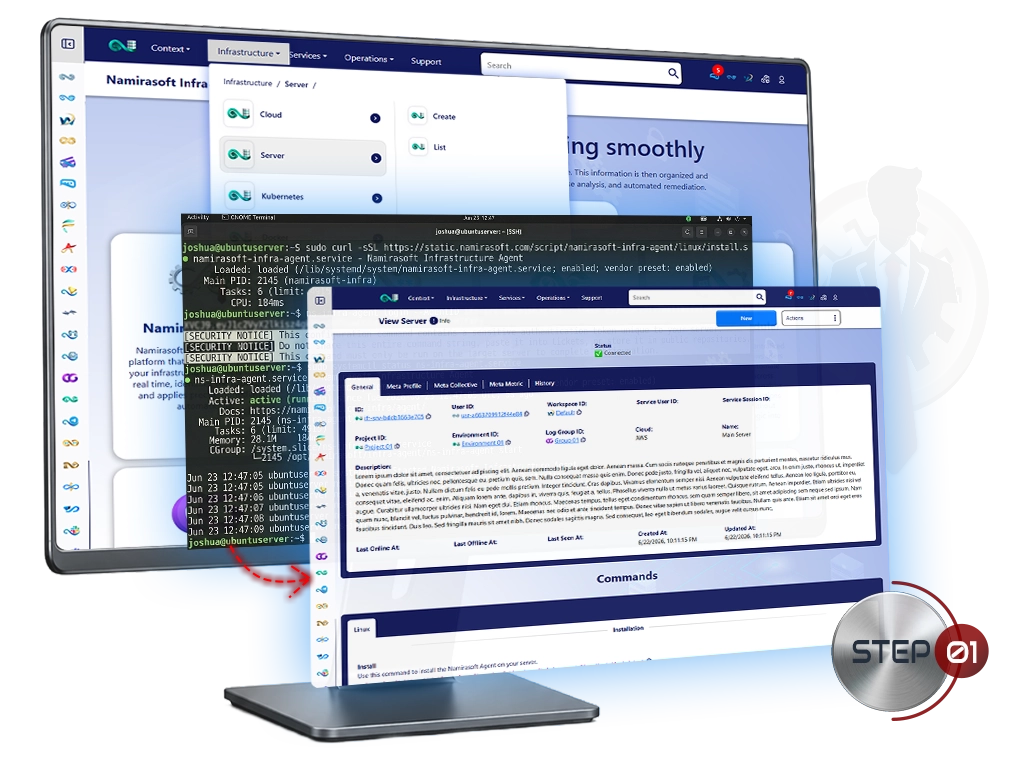
Step 1: Connect Your Infrastructure
Set Up Namirasoft Infra First
Before creating your Namirasoft Expert Agent, set up your infrastructure in Namirasoft Infra.
- Add your infrastructure in Namirasoft Infra
- Install the Namirasoft Infra Agent on each server
Important: Some supported infrastructure types require additional applications before Namirasoft Expert can retrieve operational data and perform analysis. Required applications vary by infrastructure type. Refer to the Coverage page for current requirements.
View How to Set Up Namirasoft Infra
Step 2: Create Your AI Agent
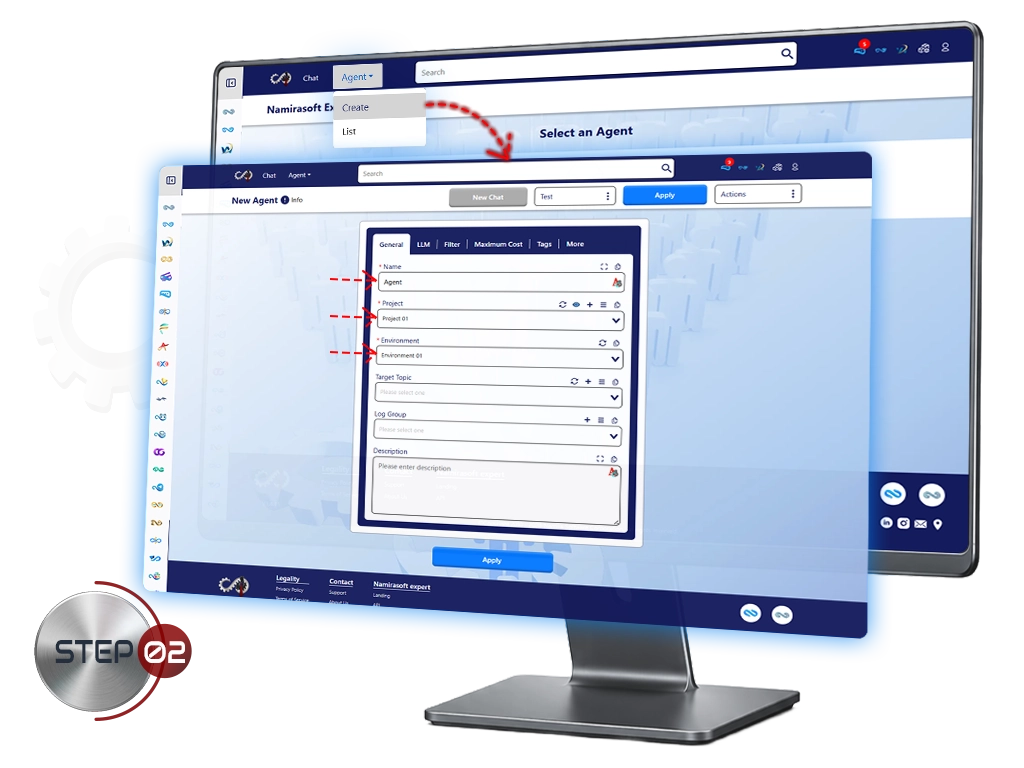
Create a New Agent in the Console
Once your infrastructure is connected, create your Namirasoft Expert AI agent in the console.
- Go to the Namirasoft Expert console
- Click Create New Agent
- Enter a name for your agent
- Select a ProjectProjectRepresents a product or application (e.g., namirasoft.com). Infrastructure is organized and grouped under projects. and EnvironmentEnvironmentA deployment stage within a project, such as production, development, staging, or disaster recovery. Servers are defined within each environment.
Step 3: Create and Select Notification Topic
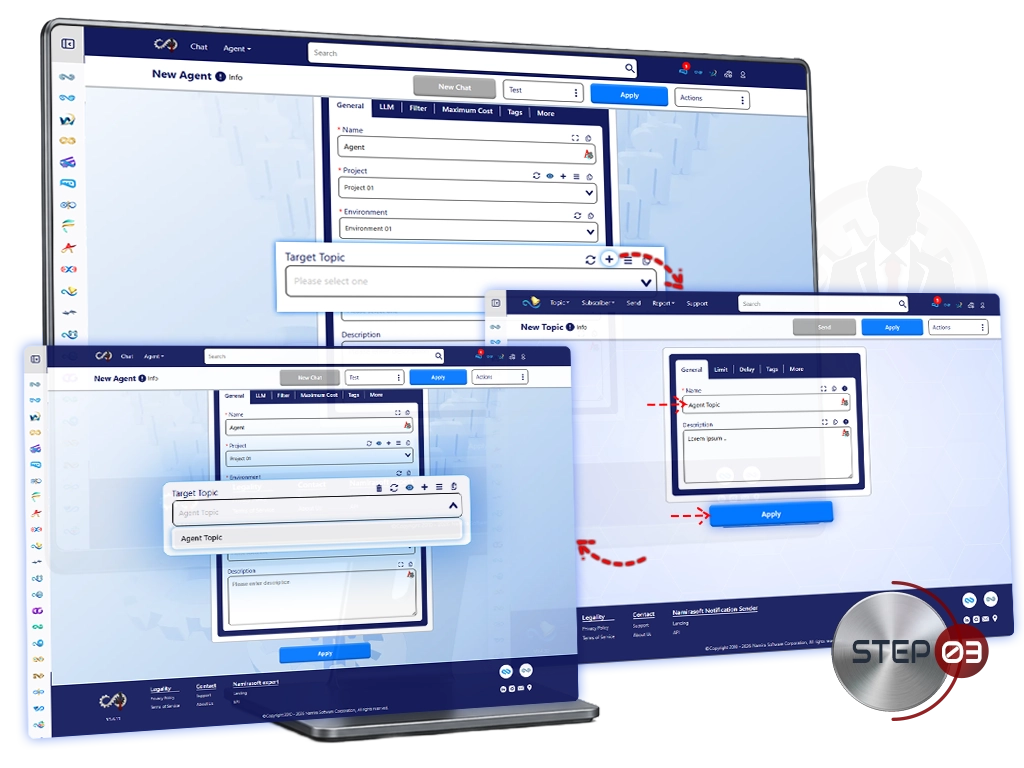
Create a notification topic in Namirasoft Notification Sender, then select it as the Target Topic for your AI agent.
- Click the + icon
- Enter a name for the topic
- Click Apply
- Return to the Namirasoft Expert console
- Select the created topic as Target TopicTarget TopicUsed to receive alerts and deliver investigation reports between the Namirasoft Expert AI agent and Namirasoft Notification Sender.
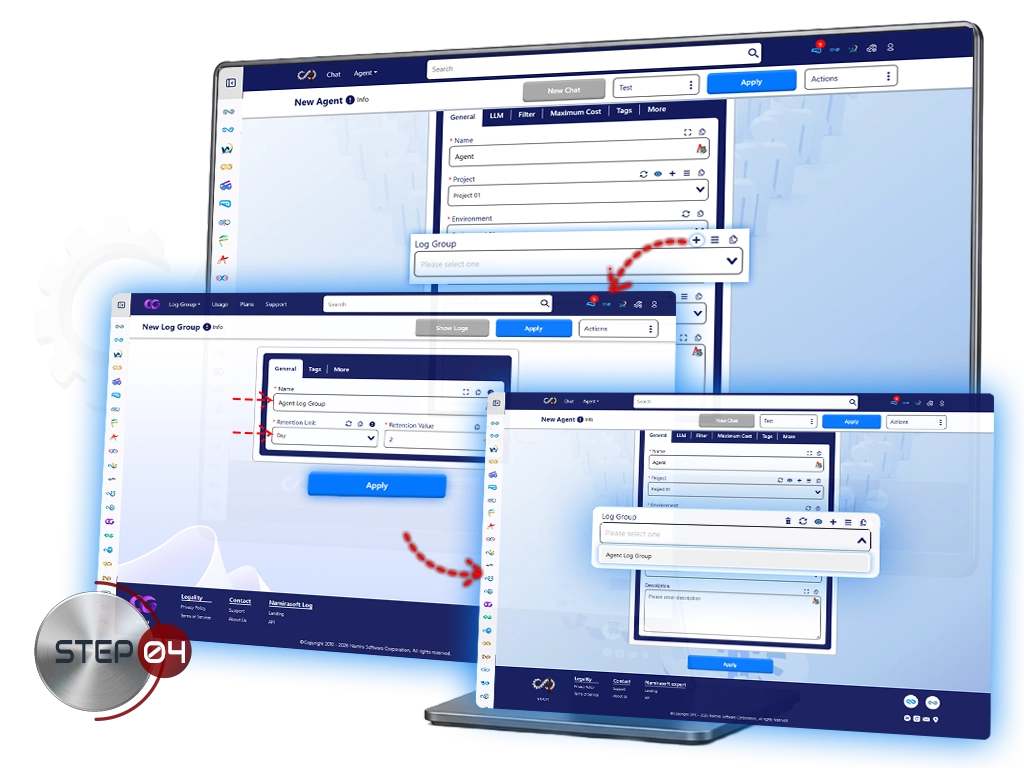
Step 4: Create and Select Log Group
Create a log group in Namirasoft Log, then select it for your AI agent to store investigation results and execution history.
- Click the + icon
- Enter a name for the log group
- Select Retention UnitRetention UnitDefines the time unit used for log retention (e.g., hours, days, months).
- Select Retention ValueRetention ValueDefines how long logs are retained based on the selected unit.
- Click Apply
- Return to the Namirasoft Expert console
- Select the created log group as Log GroupLog GroupUsed by the Namirasoft Expert AI agent to store investigation results and execution history.
Step 5: Choose LLM Providers and Models
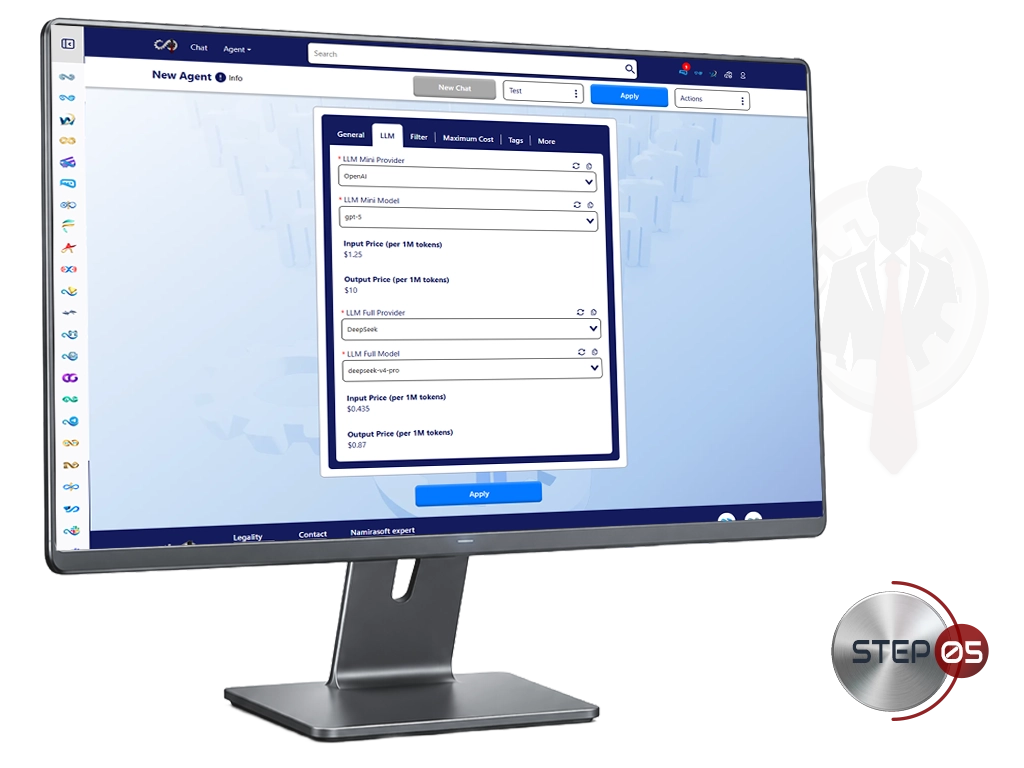
Select the providers and models your Namirasoft Expert AI agent will use during investigations.
- Select a provider for the LLM Mini Model
- Select a model for the LLM Mini Model
- Select a provider for the LLM Full Model
- Select a model for the LLM Full Model
- View the Input CostInput CostThe cost of tokens sent to the AI model as part of your request. and Output CostOutput CostThe cost of tokens generated by the AI model in its response. of each model before making your selection
We currently support the following providers:
DeepSeek
Anthropic
Step 6: Define Agent Filters
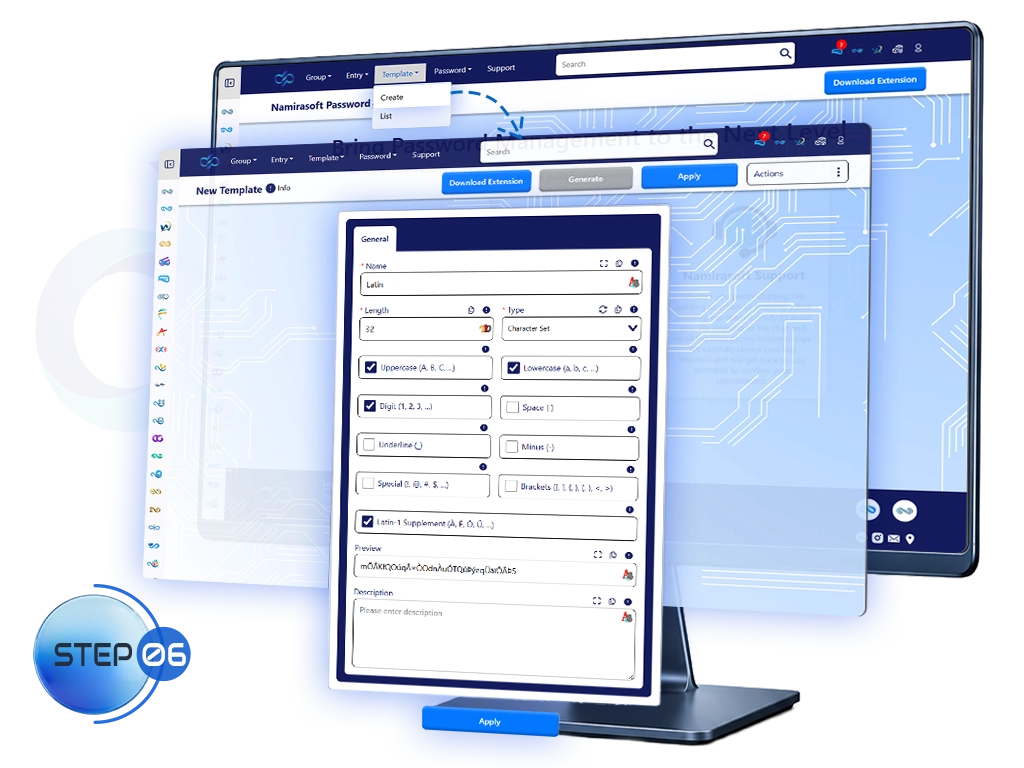
Use Filters to select which parts of your infrastructure the AI agent is allowed to investigate.
- Select one or more infrastructure types
- Optionally apply filters to limit the agent to specific entities
Namirasoft Expert currently supports Linux Servers only. Refer to the Coverage Page for full support details.
Step 7: Set Maximum Costs and Apply
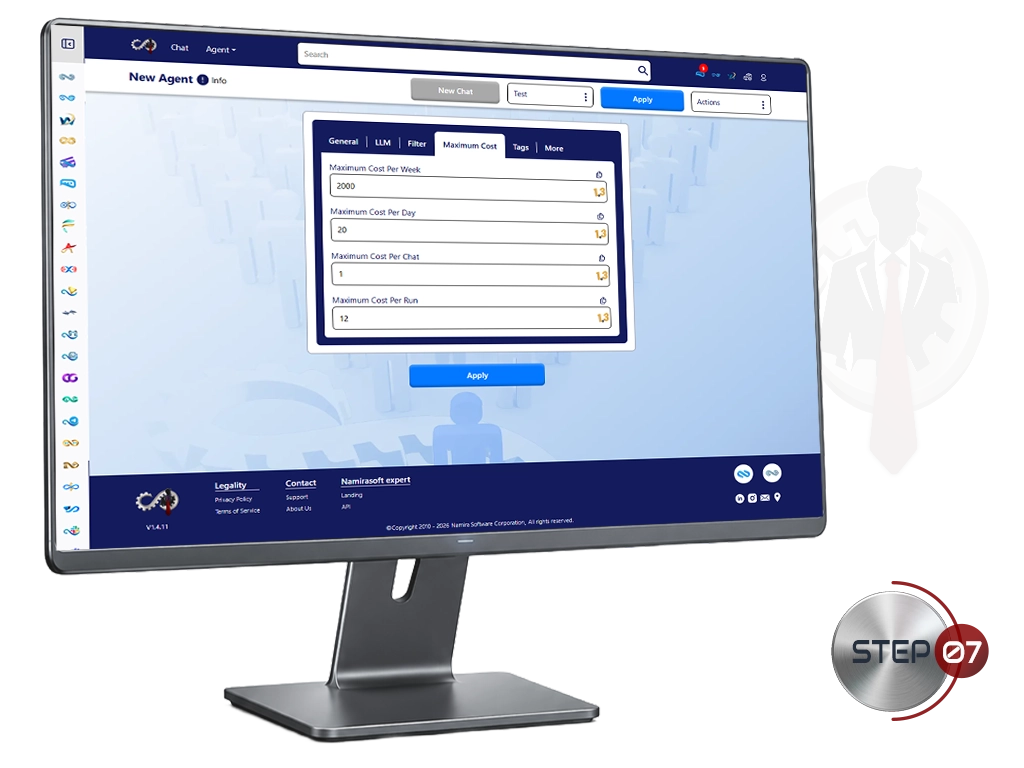
Set the maximum AI cost allowed during each usage period.
- Per run
- Per chat
- Per day
- Per week
Setting limits helps keep AI usage predictable and under control.
Click Apply to save the agent configuration.
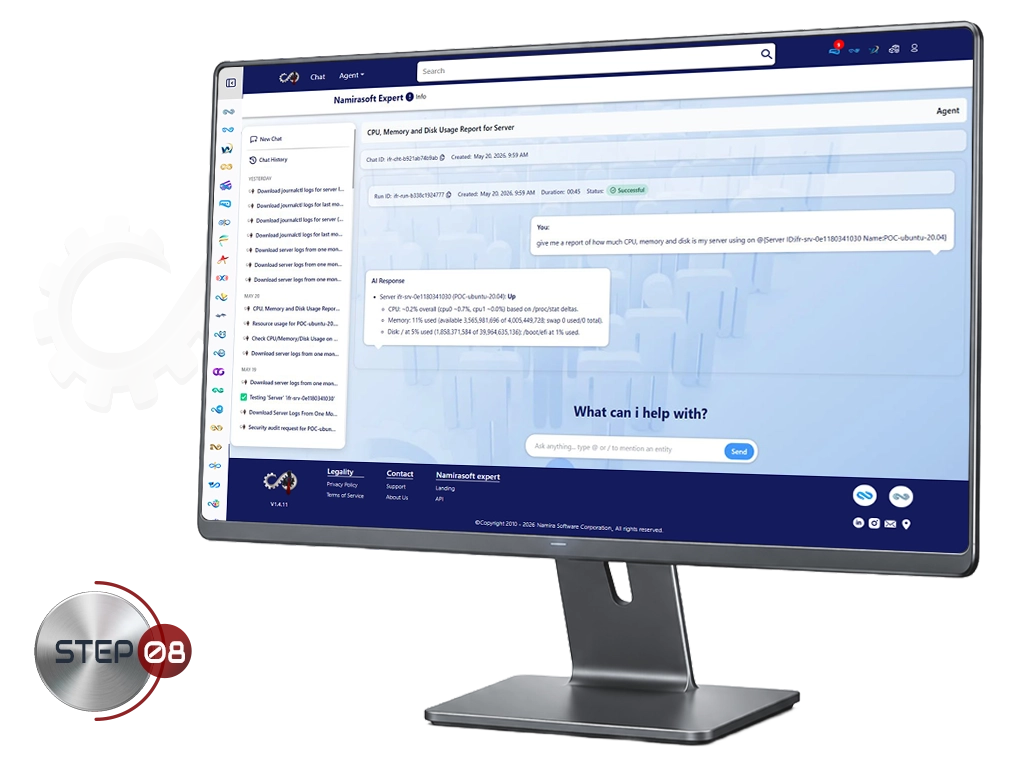
Step 8: Start Using Namirasoft Expert
Open a New Session
Your AI agent is now ready.
- Click New Chat in the console
- Select the AI agent you configured
- Ask questions about your infrastructure in natural language
You can view every command executed and every result retrieved during the investigation.
Ready to Configure Your AI Agent?
Follow the setup process, connect your infrastructure, and start investigating with live operational data.
How It Works FAQs
1. Do I need Namirasoft Infra to use Namirasoft Expert?
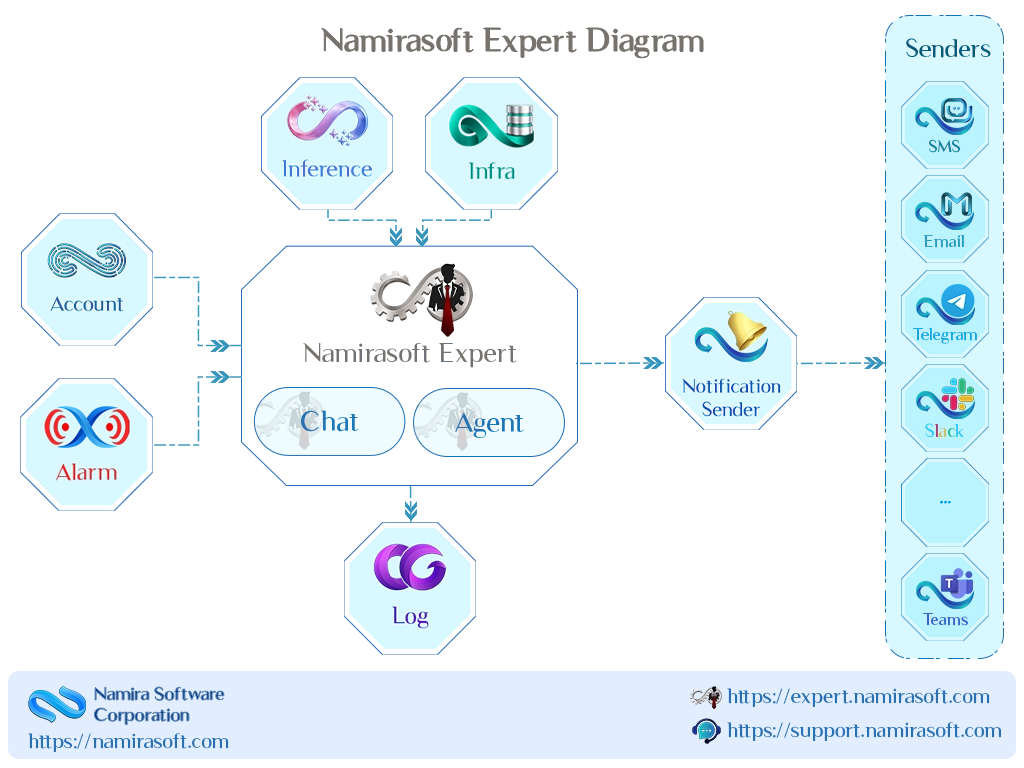
Yes. Namirasoft Expert retrieves operational data through Namirasoft Infra. Before creating an AI agent, you must connect your infrastructure in Namirasoft Infra and install the required agent on supported systems.

2. Do I need to install additional applications?
Possibly. Some supported infrastructure types may require additional applications before the Namirasoft Expert AI agent can perform investigations. Requirements vary by infrastructure type. Refer to the Coverage Page for current requirements and compatibility information.
3. Which LLM providers does Namirasoft Expert support?
Namirasoft Expert currently supports OpenAI (ChatGPT), DeepSeek, and Anthropic models. Mini and Full models can be selected independently and may use different providers.
4. What is the difference between Mini and Full models?
Mini models are designed for faster and lower-cost tasks, while Full models are intended for more complex investigations that require deeper analysis and reasoning. You can configure both independently for each AI agent.
5. What do Agent Filters control?
Agent Filters define which infrastructure the AI agent is allowed to investigate. You can select specific infrastructure types and optionally restrict the agent to individual entities within those types.
6. What is a Target Topic?
A Target Topic is an entity in Namirasoft Notification Sender that connects Namirasoft Expert with the notification system. It can receive alerts that trigger investigations and deliver investigation reports through configured notification channels, including SMS, Email, Slack, Telegram, and Microsoft Teams.
For more information, visit Namirasoft Notification Sender.
7. What is a Log Group?
A Log Group is an entity in Namirasoft Log used by the Namirasoft Expert AI agent during investigations. It can store investigation activity, executed diagnostics, and generated results in that log group.
For more information, visit Namirasoft Log.
8. What happens when an AI usage limit is reached?
When a configured usage limit is reached, the AI agent stops processing new requests for that period. Processing automatically resumes once the corresponding limit period resets.
9. Can I create multiple AI agents?
Yes. Each AI agent can have its own investigation scope, AI model configuration, notification settings, log group, and usage limits.
10. What are Projects and Environments?
Projects and Environments help organize AI agents. A Project typically represents an application, service, or team, while Environments separate production, staging, development, and other deployment stages.
11. Can I review what the AI agent did during an investigation?
Yes. Investigation activity remains visible within the platform. You can review executed diagnostics, collected information, investigation history, and generated results.
12. Does Namirasoft Expert modify my infrastructure?
No. Namirasoft Expert performs investigations using read-only diagnostic commands. It does not modify servers, configurations, applications, or infrastructure resources.
Ready to Get Started?
Create your first AI agent and begin generating reports, diagnoses, and suggested solutions from connected infrastructure.