How to Create AWS Access Keys
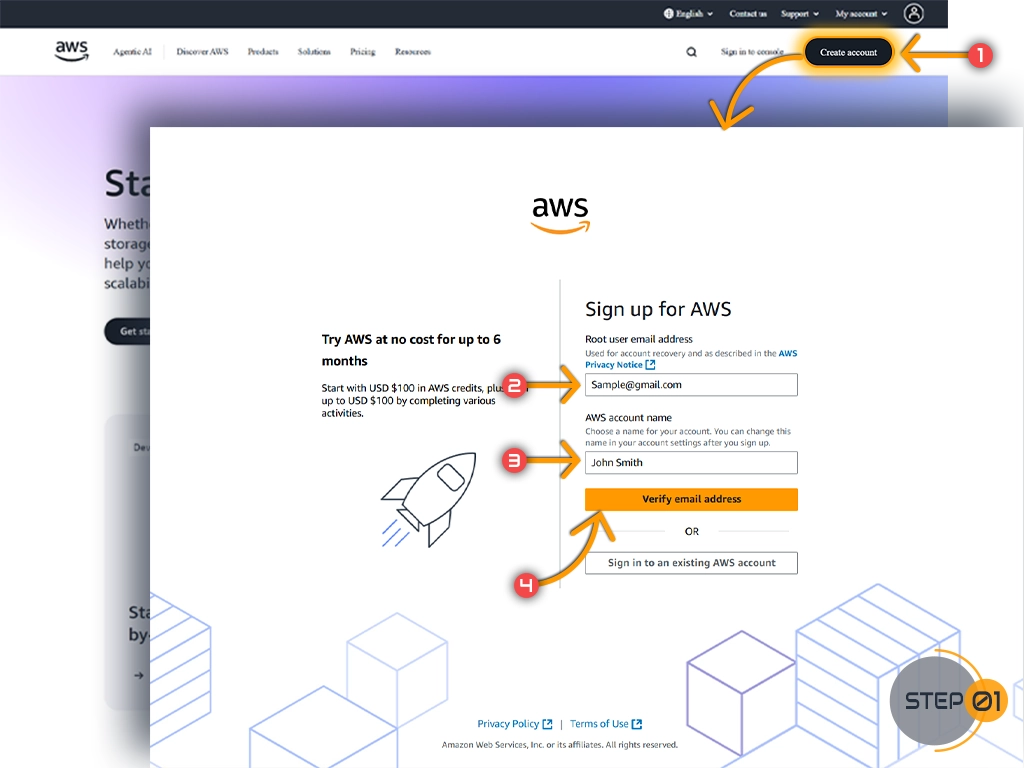
To connect Namirasoft applications with your AWS account, you need an Access Key and a Secret Key. These act like a username and password for secure programmatic access.
Follow the steps below to create access keys in your AWS account.
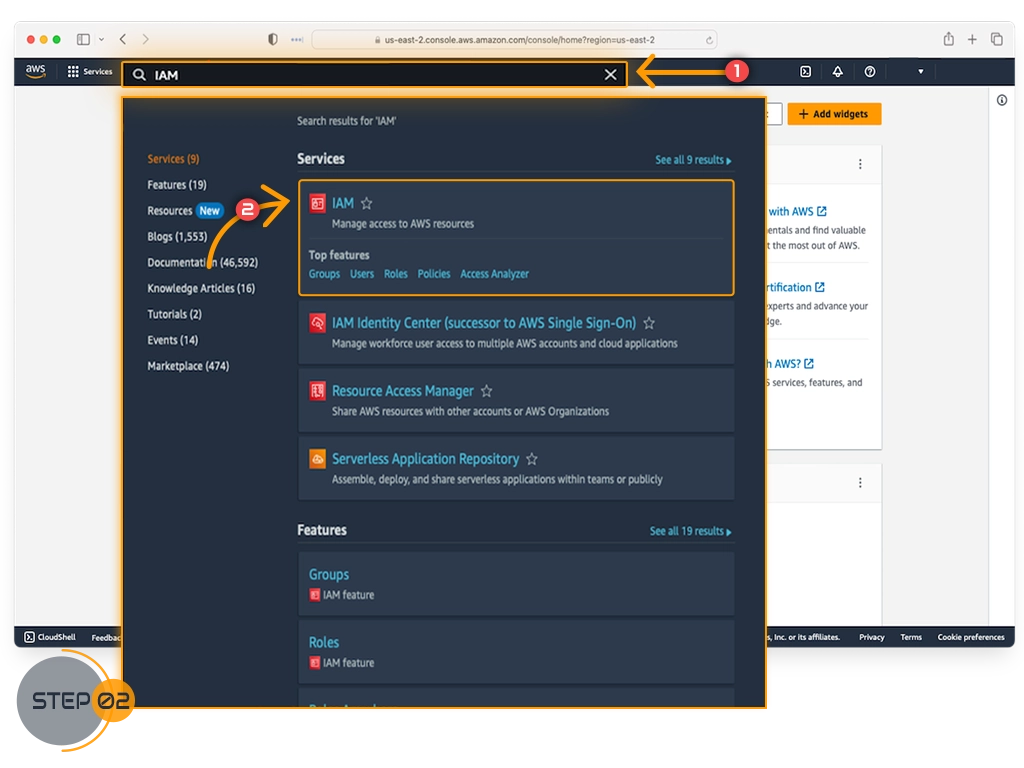
Step 2: Open the IAM Service
In the search bar at the top, type IAM and select IAM (Identity and Access Management).
Step 3: Add a New User
-
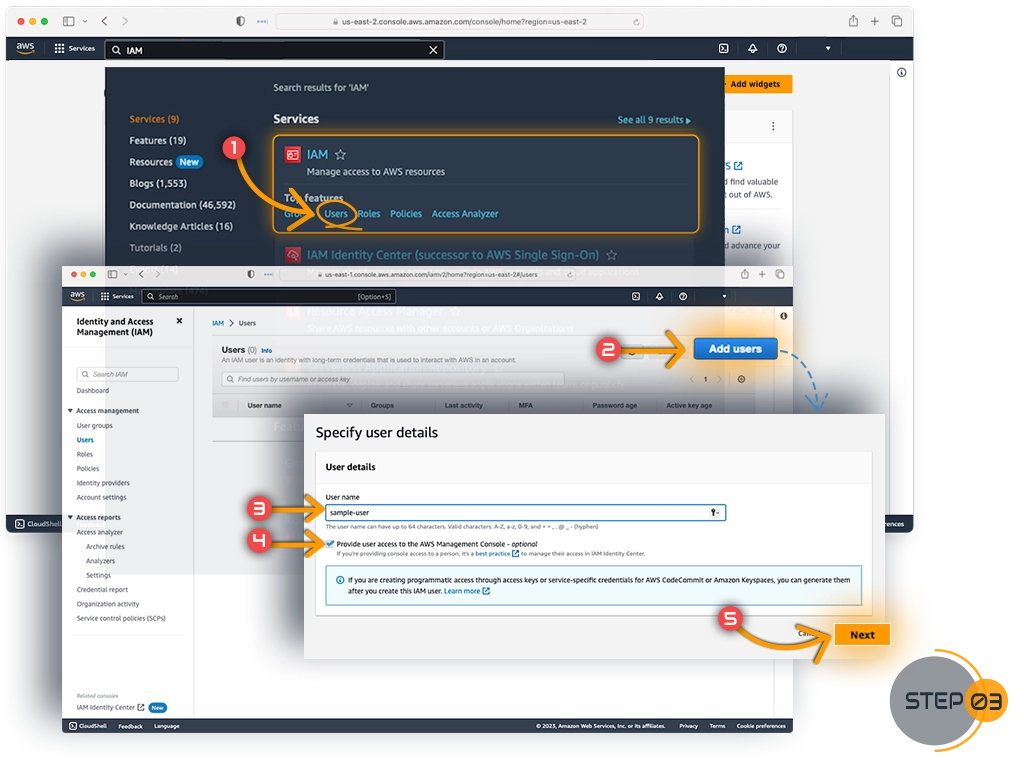
1. In the IAM dashboard, click Users from the left menu.
2. Click Add user.
3. Enter a username (for example,
Namirasoft).4. Select Programmatic access only (you do not need console access).
5. Click Next.
Step 4: Set Permissions
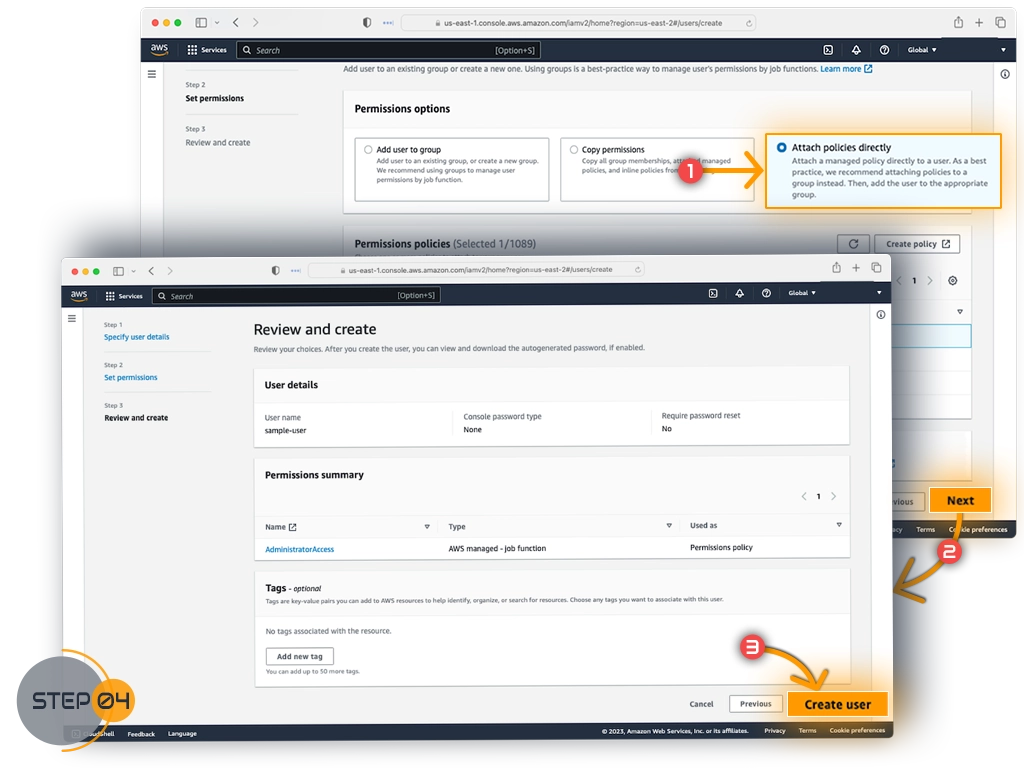
1. On the Set permissions screen, choose Attach policies directly.
2. Open the JSON editor.
3. Copy the policy for the Namirasoft application you are using:
{
  "Version": "2012-10-17",
  "Statement": [
    {
      "Sid": "AllowCostExplorerAccess",
      "Effect": "Allow",
      "Action": [
        "ce:GetCostAndUsage",
        "aws-portal:ViewBilling",
        "cur:DescribeReportDefinitions",
        "budgets:ViewBudget"
      ],
      "Resource": "*"
    }
  ]
}
{
  "Version": "2012-10-17",
  "Statement": [
    {
      "Sid": "AllowNWSVolumeS3Access",
      "Effect": "Allow",
      "Action": [
        "s3:ListBucket",
        "s3:GetObject",
        "s3:PutObject",
        "s3:DeleteObject",
        "s3:PutObjectAcl"
      ],
      "Resource": [
        "arn:aws:s3:::YOUR_BUCKET",
        "arn:aws:s3:::YOUR_BUCKET/*"
      ]
    }
  ]
}
4. Paste the copied policy, then click Next and create the user.
Step 5: Create Access Keys
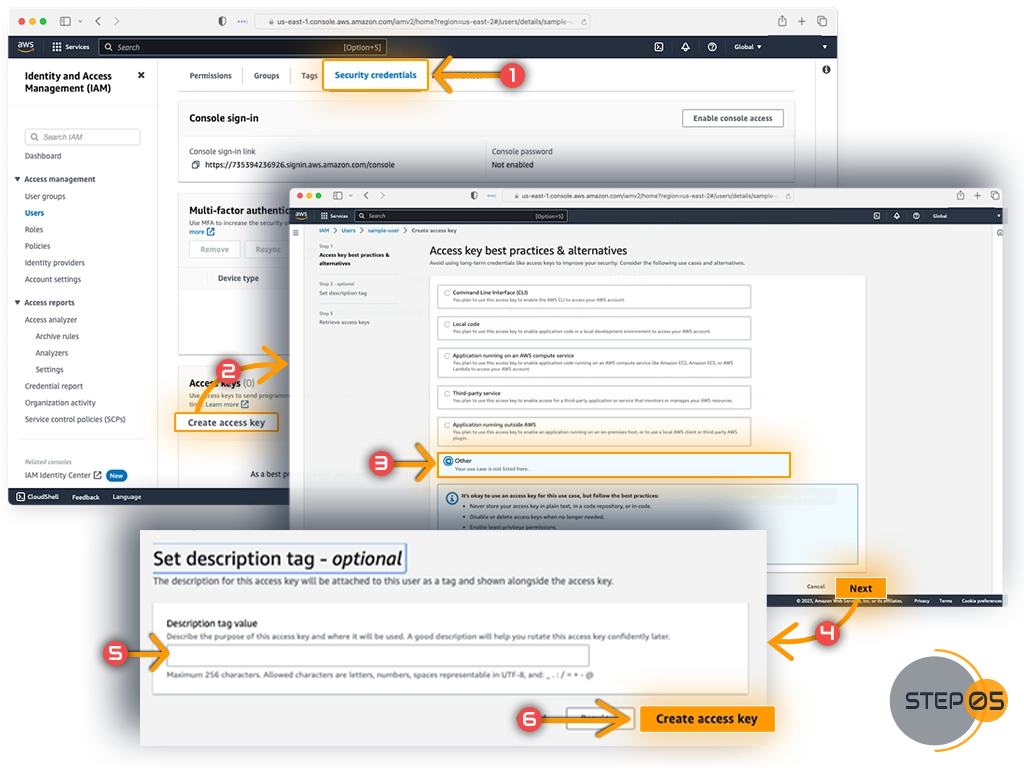
1. While viewing the user, go to the Security credentials tab.
2. Scroll to Access keys and click Create access key.
3. Choose the use case (you can select Other if not listed).
4. Optionally enter a description for the key.
5. Click Create access key.
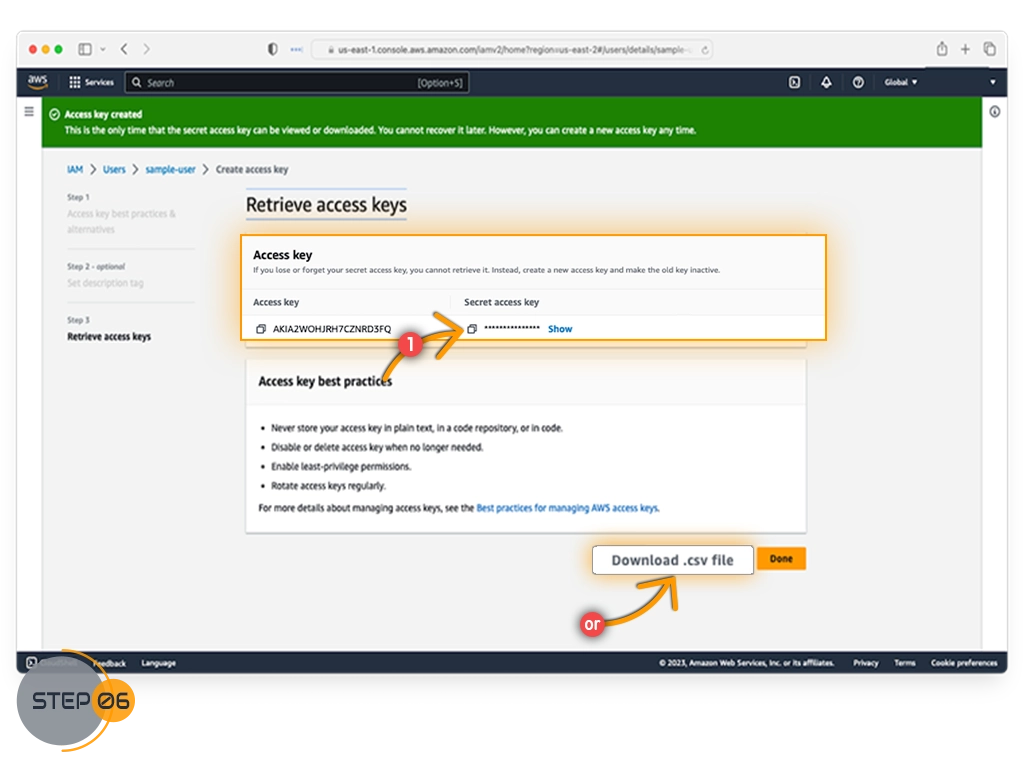
Step 6: Retrieve and Save Your Keys
AWS will show the Access Key and Secret Key.
⚠️ Important: The Secret Key is displayed only once. Download the .csv file or copy the keys and store them safely.